
Image: Grainzilla, with the CapCut logo; grain background: Kodak T-Max 100 micrograph by Wiley.andrew.r (CC0), via Wikimedia Commons
To add a film grain overlay in CapCut, import a grain clip, drag it onto the overlay track above your video, open Video > Basic > Blend, set the mode to Overlay or Soft Light, and lower the opacity to around 20 to 50 percent. That works in CapCut for desktop with any grain overlay file, including the free film grain overlays from Grainzilla. CapCut also has built-in grain effects, but a scanned grain overlay gives you far more control and a more convincing film texture.
What you need
- CapCut for desktop (Mac or Windows). The steps below use the desktop app, which handles ProRes .mov overlays and gives you full blend mode control.
- A film grain overlay clip, ideally the same frame rate as your project. Grainzilla overlays are 23.976 fps ProRes 422 .mov files.
- Your footage, already cut and color corrected. Grain goes on last.
Step by step: film grain overlay in CapCut
- Import the grain. In the Media panel, click Import and select the grain .mov file.
- Add it as an overlay. Drag the grain clip onto the timeline above your main video track, so it sits on its own overlay track covering the clips you want to texture.
- Stretch it to fit. Make the grain clip as long as your edit. If your edit is longer than the overlay, duplicate the overlay clip and place the copies end to end.
- Set the blend mode. With the grain clip selected, go to Video > Basic > Blend and choose Overlay. For a softer result use Soft Light.
- Adjust the opacity. In the same Blend section, lower the opacity until the grain sits naturally. Start around 30 percent and judge it at full screen, not in the small viewer.
- Export at your project resolution. Grain is fine detail, so a higher export bitrate keeps more of it.
Which blend mode to use in CapCut
- Overlay: the standard for film grain; adds texture to mid-tones without washing out blacks.
- Soft Light: gentler, good for clean, modern footage.
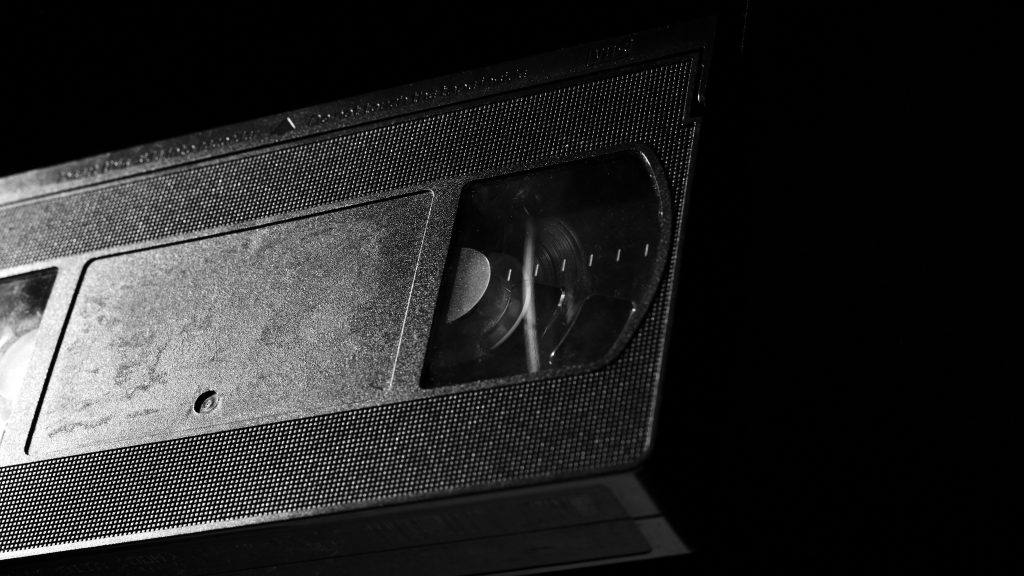
- Screen: for bright effects on black, such as film burns, light leaks and VHS noise.
- Multiply: for dark dust, dirt and scratches on a white background.
CapCut’s built-in grain vs a grain overlay
CapCut’s built-in grain and film effects are quick, but they are generated noise with a fixed look. A grain overlay scanned from real film has irregular particles that change every frame and react to the image like film does, and you choose the gauge and intensity. Real 35mm grain reads cinematic, 8mm reads nostalgic, and fine grain simply takes the plastic edge off digital video. Read more in real film scan vs digital grain.
Tips for grain that survives TikTok, Reels and YouTube
- Keep it subtle. Social platforms compress heavily, and heavy grain turns into blocky noise.
- Use fine grain for vertical social video and stronger 35mm or 8mm grain only when the look calls for it.
- Match resolution: 1080p grain for 1080p exports, 4K grain for 4K. See what grain survives compression.
Free and pro grain for CapCut
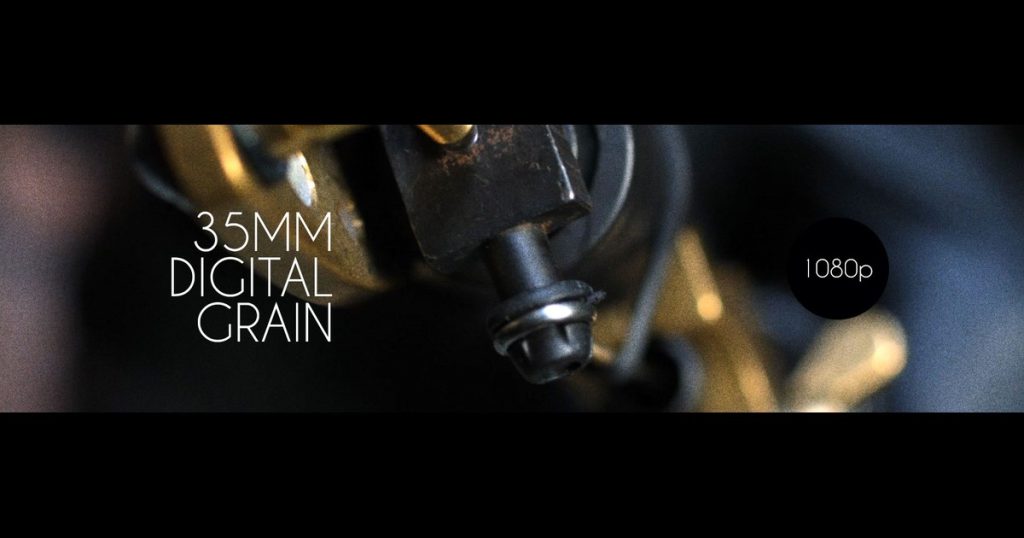
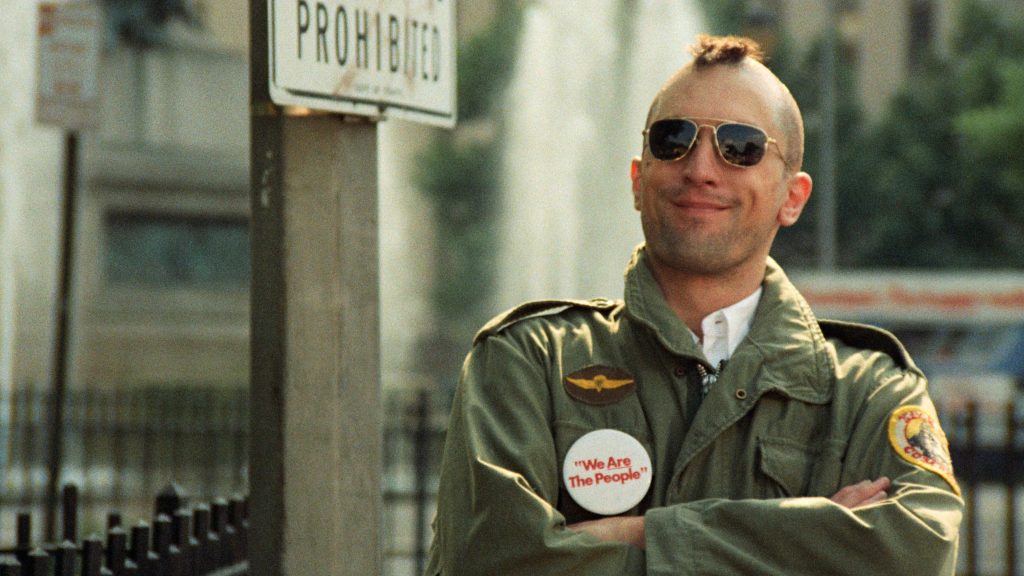
Start with Grainzilla’s free film grain download (35mm digital grain, VHS noise, a War film look and 4K letterboxes). For real film scans, the 1080p Film Grain Pack suits most social video and the 4K Film Grain Pack has eight real film scans for 4K projects.
FAQ
Does CapCut support film grain overlays?
Yes. CapCut desktop can place any video clip on an overlay track and blend it with modes like Overlay, Soft Light and Screen, which is all a grain overlay needs.
Can I add film grain in CapCut mobile?
CapCut mobile also has overlays and blend modes, under Overlay > Add overlay and then Blend, though some ProRes files may need converting to H.264 first on a phone.
What opacity should film grain be?
Usually 20 to 50 percent with Overlay blend. Lower for clean commercial or social content, higher for a deliberately vintage look.