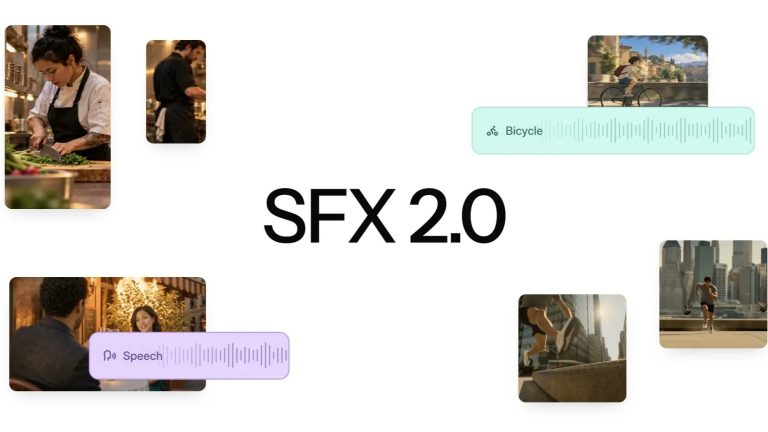
Image: Mirelo, via mirelo.ai
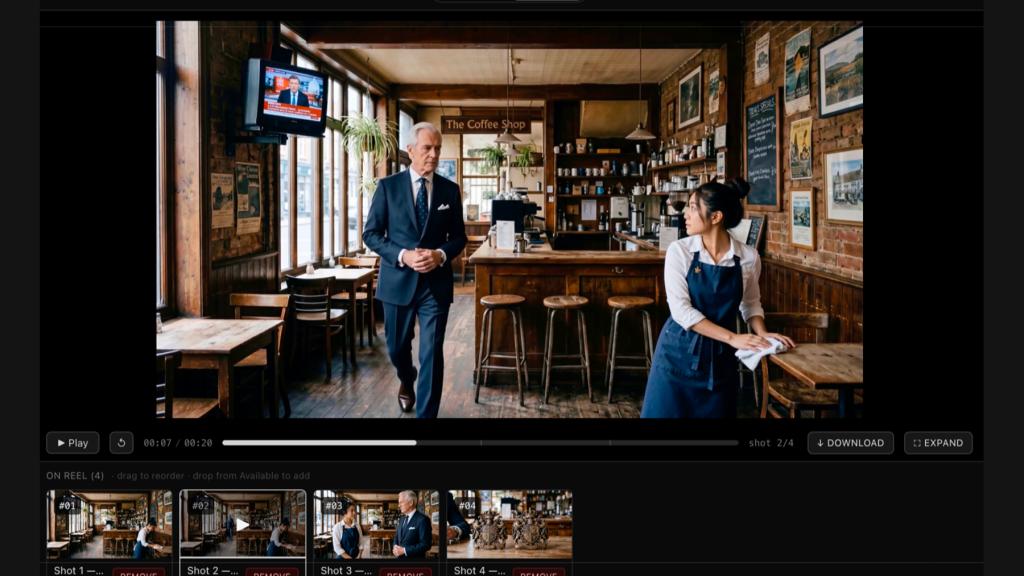
Mirelo SFX 2.0 is a video-to-sound model: you give it a finished cut, it keeps the dialogue, throws away the rest of the audio, and builds footsteps, foley and ambience that follow the picture. It is useful in two situations. One is AI footage that arrives silent or with music the video model added unprompted. The other is a real edit where you want a first sound pass faster than hunting through a library. Here is how to run it, in Mirelo Studio or inside Premiere Pro and DaVinci Resolve Studio, and what to do with the result.
What SFX 2.0 Does
According to Mirelo’s announcement, the model analyzes the video to understand timing, action and environment, then generates audio that fits. It preserves dialogue, removes unwanted music and other non-dialogue audio, and keeps the ambience consistent across cuts, for edits up to 10 minutes in a single pass. A review on AIIDEList adds the practical specs: an optional text prompt of up to 2,000 characters, a negative prompt of up to 1,000, up to four variations per run, and output as 48 kHz mono in WAV, FLAC or MP3.
Mirelo’s own blind listening tests put SFX 2.0 ahead of Sony Woosh (81% preference) and Kling Foley (63%). Those are the vendor’s tests, so take them as a signal, not a verdict.
Step 1: Lock the Cut First
This is the rule every guide repeats. Morphic’s guide to the model puts it plainly: “The sound follows the picture, so trims after the run can cut an effect in half.” Finish the edit, including any speed ramps, before you generate.
Step 2: Run the Whole Edit in One Pass
You can upload to Mirelo Studio and its Playground, or use the plugins. Run the full sequence together rather than shot by shot, because one pass is what keeps the room tone consistent across cuts. Dialogue retention is on by default, and effects duck under speech automatically.
If you are working from a voiceover instead of on-camera speech, Morphic’s guide suggests turning speech off so you get effects and ambience only and leave room for your recording.
Step 3: Start With No Prompt
Morphic’s advice is to run it once with no prompt, since the picture usually supplies enough context. Listen, then steer. Mirelo’s Studio guide says to describe a sound clearly: source, material, space and intensity. Morphic offers examples in that spirit:
- “heavy rain on a tin roof, footsteps quiet underneath”
- “boots on fresh snow, leather creaking”
- “distant church bells, a dog barking two streets away”
- “soft room tone, a clock ticking, nothing else”
The negative prompt is for things you do not want. Morphic’s examples are music, wind and crowd noise. Each run produces up to four takes and the sound varies between them, so audition two or three before choosing.
Step 4: Use the Plugin Inside Your Editor
For Premiere Pro, Mirelo’s plugin page says to download it from Adobe Exchange, install it from Creative Cloud under Manage Plugins, then open it in Premiere through Window, UXP Plugins, Mirelo AI and sign in. You select a clip, it reads the visuals and generates synced effects, and a Timeline Sync toggle places the audio at the correct position. After Effects and Audition support are listed as coming.
For Resolve, the plugin page is explicit that you need DaVinci Resolve Studio, because the free version does not support third-party plugins. Run the .pkg (macOS) or .exe (Windows) installer, restart Resolve Studio, and open it from Workspace, Workflow Integrations. Timeline Sync works the same way.
If you drive your edit with an AI agent, the model is also reachable through Runway’s agent workflow, where Runway describes it as giving your agent a clip, describing the sound you want, and getting a separate audio track back.
Pricing
Mirelo’s pricing page lists a free plan with 5,000 monthly credits, about 8 minutes of SFX 2.0, a Creator plan at 20 euros a month for about 40 minutes, and a Studio plan at 99 euros for about 200 minutes. SFX 2.0 is on a discounted rate until December 12. The pages I read do not spell out commercial-use terms, so read them before you put generated audio in client work.
What It Does Badly
The AIIDEList review lists the limits. The output is a single mixed track with no stems by default. The prompt limit is shorter than the previous version, and extend and inpaint operations were removed. Very quiet or heavily processed speech may be handled less reliably, and detailed foley sometimes leaves a trace of synthetic ambience. The 48 kHz output is mono, so for a film mix you will want to place and widen it yourself.
Finishing in the Edit
Treat the result as a layer, not a finished mix. Put the generated track on its own audio track, leave your recorded dialogue untouched, and mute or replace any effect that does not sell. Add your own room tone under the cut, and bring music in last: Morphic’s advice is to keep music out of the generated sound and layer your licensed track separately. Then finish the picture. If the footage is AI-generated, a grade plus real texture does more to hide the synthetic look than any sound pass; our guide to adding film grain in Premiere Pro, DaVinci Resolve and Final Cut Pro walks through it.
Sound is the cheapest way to make a synthetic shot feel like it was somewhere. The picture still has to earn the rest.
Sources: Mirelo, SFX 2.0 announcement; Mirelo Studio docs; Mirelo plugin for Adobe Premiere Pro; Mirelo plugin for DaVinci Resolve; Mirelo pricing; Morphic, Mirelo SFX 2.0 guide; AIIDEList, Mirelo SFX 2.0 review, October 15, 2026; Runway changelog, October 15, 2026.