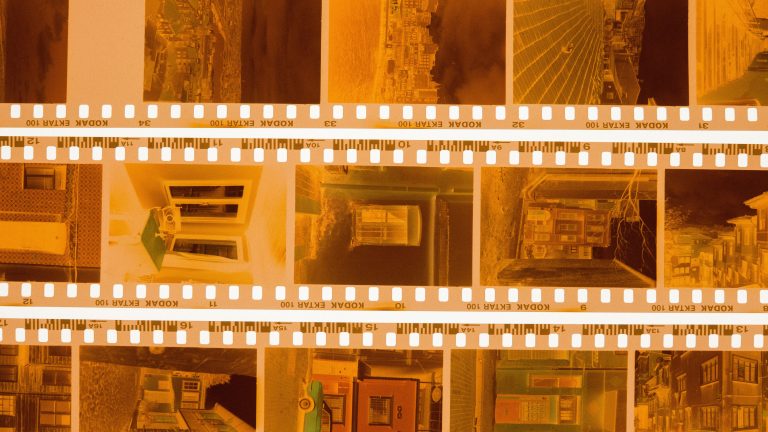
Film grain and video compression have never gotten along, and if you’ve ever exported a beautifully grainy timeline only to watch it turn into blocky mush on YouTube, you’ve already met the problem. The fix isn’t a magic overlay. It’s understanding what compression actually does to grain, and matching your grain choice to where the video is headed.
Why Grain And Compression Fight Each Other
Codecs like H.264, HEVC, and VP9 compress video by finding redundancy, similar pixels next to each other, similar frames next to each other, and discarding whatever looks repetitive. Grain is the opposite of redundant by design. FilmConvert’s John Parker explains the mechanism directly: film grain forces compression to “smush” areas that should stay distinct, which is exactly what produces the banding, blockiness, and smeared texture you see after upload. Every grain pixel the encoder can’t safely throw away costs bitrate, and if the platform caps your bitrate, which YouTube, Instagram, and TikTok all do, that cost gets paid in visible artifacts instead of file size.
What Netflix Already Proved About This
This isn’t a fringe complaint. It’s a problem big enough that the AV1 codec built a dedicated feature around it, Film Grain Synthesis. Instead of encoding grain into every single frame, the encoder strips it out before compression and resynthesizes it at playback using a small set of parameters sent alongside the video. Netflix engineer Li-Heng Chen, presenting on the rollout, described achieving up to a 30 percent reduction in bitrate across grainy titles, with individual frames showing nearly a three-fold bitrate drop at equal or better visible quality. His advice to anyone tuning a grain-removal pass, “don’t be too greedy,” applies just as well in reverse to anyone adding grain for a compressed platform. Don’t add more texture than the delivery format can actually afford to keep.
The Fix That Doesn’t Involve Fighting YouTube’s Encoder
You don’t control YouTube’s compression pass, but you control two things that matter more than most editors assume. First, export at the highest bitrate and bit depth your pipeline allows. Filmmaker Garret Harkawik notes that heavier grain “adds a lot more information, which then gets translated into compression artifacts” once a platform recompresses your upload, so a stronger source file simply gives that recompression more room to work with before it starts eating real detail. Second, be deliberate about where the grain sits in the image. Harkawik’s point is to add texture to the mid-luminance areas only and leave pure blacks and whites clean, which keeps grain from stacking on top of the artifacts that already gather in shadows first. A grain overlay set to Overlay blend mode does exactly that, which is why it’s the default we recommend for Grainzilla’s overlays.
Which Grain To Actually Use, By Platform
For YouTube, social cuts, or anything getting recompressed by a platform you don’t control, reach for a finer, lower-contrast overlay instead of a heavy scan. Grainzilla’s 4K Fine Film Grain ($9.90) is built for exactly this, subtle enough that a second compression pass doesn’t have much texture left to destroy. If you’re delivering specifically in 1080p for the web, the 1080p Film Grain Pack 2.0 ($24.90) is worth switching to over a downscaled 4K grain file, its nine overlays are native to that resolution, so you’re not asking a lower-res export to hold detail that was scaled down from something bigger.
Save the heavier textures for masters, festival deliverables, or anything landing on a high-bitrate streaming pipeline where the platform isn’t fighting you as hard. The 4K 35mm Real Film Grain overlay ($9.90), scanned from actual film stock rather than simulated, holds up beautifully at higher bitrates and reads noticeably more organic than a digital emulation once it isn’t being compressed into mush. Editors who’d rather have every option on hand than guess per project should look at the 4K Film Grain Pack 2.0 ($39.90), nine overlays, eight of them real film scans from fine 35mm grain to dirt textures plus one clean digital grain, or the Grainzilla Ultimate Bundle Pack ($59.90) if grain is only one piece of the look you’re building.
Match The Grain To Where It’s Going
The best film grain overlay isn’t a single answer, it’s a decision that depends on where the footage is headed. A shot bound for a client’s 4K master and a shot bound for a YouTube upload are not the same delivery problem, and treating them like they are is how good grain turns into visible garbage the moment a platform gets its hands on it. Pick the file that matches the trip your video is actually about to take, not just the mood you were going for when you dragged it onto the timeline.
Sources: FilmConvert, Garret Harkawik, 8K Association