Free film grain overlays come from three places: makers who give away samples of their paid libraries, filmmakers who share their own grain, and stock video sites. They differ a lot in what you actually get: real film scans or generated noise, video or still images, ProRes or heavily compressed files, and whether you can use them in paid work. Below is what each source offers, followed by our verdict.
Full disclosure: this is the Grainzilla blog, and we make film grain overlays. We have tried to be fair below, list what each source actually offers, and point out the one question that matters most when you compare free grain: is it a real film scan or generated noise?
Real film scans vs generated grain: check this first
Real film grain is captured by exposing actual motion picture film and scanning it, so the particles are irregular and change randomly every frame. Generated (digital) grain is noise created in software. It is cleaner and more uniform, which can be exactly what you want for subtle texture, but it does not read as film in close-ups and smooth gradients the way a scan does. Many free packs mix both, and not all of them say which is which, so read the description before you download.
1. Grainzilla: free samples of its grain, vintage and film look packs, plus the free Hero Studio panel
Grainzilla’s free downloads are a starter kit rather than a single clip: a free sample from its grain, vintage FX and film look packs, the tools to frame your shot, and a panel to apply it all. Everything is ProRes 422 .mov, works in Premiere Pro, DaVinci Resolve, Final Cut Pro, After Effects and CapCut, and comes with a commercial license. Get it all on the Grainzilla free downloads page:
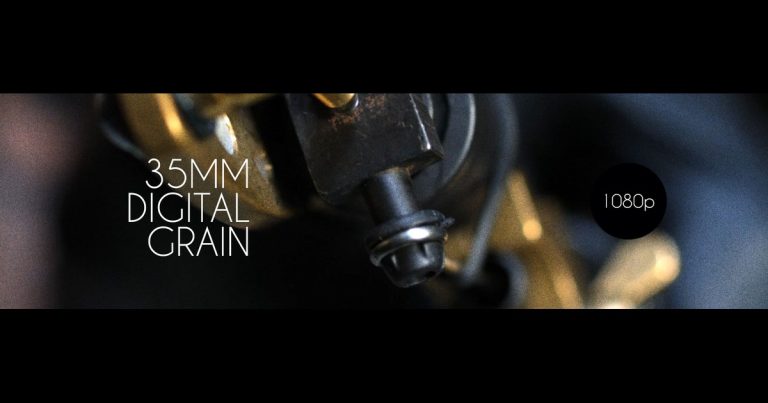
- 35mm Digital Grain (1080p): the free sample from the 1080p Film Grain Pack, a clean 35mm-style grain to take the plastic edge off digital video.
- VHS Bad Noise: the free sample from the Vintage Film FX Pack, heavy analog tape noise for retro and found-footage looks.
- War Film Look: the free sample from the Quick Film Looks Pack, a desaturated, high-contrast color look.
- 4K Letterbox Frames: widescreen bars in five aspect ratios that sit on top of your shot without cropping it.

- Grainzilla Hero Studio: a free panel for Premiere Pro and After Effects (CC 2019 or newer, macOS and Windows). Point it at your grain and overlay folders, pick an effect, set the intensity and blend mode, preview it, and click Apply: it is matched to the clip length and blended automatically. It works with any .mov, .mp4, .avi, .png or .jpg overlay, not just Grainzilla’s. Download Grainzilla Hero Studio free.
The free 35mm grain is digital, as its name says. When a project needs the real thing, the paid 4K Film Grain Pack has eight real film scans out of nine overlays, and the rule across the catalog is simple: if the file name does not say DIGITAL, it is a real film scan.
2. Thomas Fransson: Crowdak 2383 grain kit (pay what you want)
Filmmaker and YouTuber Thomas Fransson offers Crowdak 2383 on a pay-what-you-want basis, so you can download it for free. It includes two 4K DCI grain overlays: a fine, neutral “Gentle” grain and a grittier “2383” grain combined with an emulation of the classic Kodak 2383 print film look. They are H.264 .mov files, not ProRes, and the 2383 look is an emulation rather than a raw film scan. His “Real 35mm Film Grain Overlays” are real scans, but they are made for photos: still images, so they do not move like video grain.
3. Color Grading Central: five free 35mm overlays
Color Grading Central offers five 35mm film grain overlays for free, with a tutorial that walks through applying them with Screen or Overlay blend modes. Useful if you also want a guided walkthrough.
4. Resolver Tools: free 8mm, 16mm and 35mm grain
Resolver Tools offers free 4K/UHD film grain overlays in 8mm, 16mm and 35mm styles, which makes it one of the few free sources that covers all three gauges.
5. Pexels and Pixabay: free stock grain clips
Pexels lists thousands of free “film grain” stock videos and Pixabay close to a thousand, all royalty-free. The catch is consistency: clips come from many different uploaders, resolutions and frame rates vary, and many are generated noise or footage with grain rather than clean grain plates. They are worth searching for a specific texture, less so for a matched set.
Why the File Format Matters: ProRes vs H.264
Most film grain overlays you will find online, including stock-site clips and many free creator kits, are H.264 .mp4 or .mov files. H.264 is a delivery codec: it is built to make files small for streaming by throwing away fine detail and predicting frames from each other. Film grain is nothing but fine, random detail that changes every frame, which is exactly what H.264 compresses away. The result is grain that looks soft, smeared or blocky in gradients before you have even exported, and that gets worse when YouTube or Instagram compresses your video again.
ProRes 422 is an editing codec. Every frame is stored on its own at a high bitrate, so the grain keeps its structure, the overlay scrubs and plays smoothly on the timeline, and it holds up through color grading and a final export. That is why professional grain plates and VFX elements are delivered in ProRes (or as image sequences), not H.264. All Grainzilla overlays, free and paid, are ProRes 422 .mov files.
How to choose
- Match the resolution to your export. 4K grain on a 1080p timeline looks finer and weaker than intended; HD grain stretched to 4K looks soft.
- Match the frame rate. A 23.976 fps overlay on a 23.976 timeline avoids duplicated grain frames.
- Prefer ProRes or another intra-frame codec. Highly compressed MP4 grain has already lost the fine detail you are trying to add.
- Read the license. Free does not always mean free for commercial work.
- Know if it is a scan. Real scans for anything that should feel photochemical; digital grain for clean, consistent texture.
How to apply a free grain overlay
Every overlay works the same way: put it on the track above your footage, set the blend mode to Overlay or Soft Light, and lower the opacity to around 20 to 50 percent. In Premiere Pro or After Effects you can skip the manual steps with the free Grainzilla Hero Studio panel: select the clip, pick the grain, and click Apply. Editor-specific steps are in our guide on how to add film grain in Premiere Pro, DaVinci Resolve and Final Cut Pro, and if you publish to YouTube, read what grain survives streaming compression.
Our Verdict: Why Grainzilla Is the Best Free Option
Most free grain sources give you one texture. Taking everything into account, Grainzilla’s free downloads are the best place to start:
- More than grain. You get a free sample from three different packs (35mm grain, VHS noise and a film look) plus 4K letterbox frames, so you can test a whole film look, not just one texture.
- A free tool to apply it. Grainzilla Hero Studio applies grain and overlays to a clip in one click inside Premiere Pro and After Effects, matched to the clip length, and it works with any overlay you own.
- Professional ProRes files, not compressed H.264. Most free and many paid grain overlays are H.264, a compressed delivery format that destroys the fine detail grain is made of. Grainzilla delivers ProRes 422 .mov video overlays, the editing codec professional colorists and VFX artists expect, built for grading and re-export without breaking down.
- Commercial license included, even for the free files. Use them in client work, films, ads and YouTube; many free sources leave licensing unclear.
- Clear labeling. Every Grainzilla overlay is a real film scan unless its name says DIGITAL, so you always know what you are getting.
- An affordable upgrade path. When you need real film scans, single 4K overlays are $9.90, the 1080p Film Grain Pack is $24.90, the 4K Film Grain Pack (eight real scans) is $39.90, and the Ultimate Bundle with all four core packs is $59.90, a one-time purchase with no subscription.
Start with the free downloads, and if your footage needs the texture of real film, move up to the scanned packs.
FAQ
What is the best free film grain overlay?
For most editors, Grainzilla’s free downloads: a sample from three packs (35mm grain, VHS Bad Noise and a War film look), 4K letterbox frames and the free Hero Studio panel for Premiere Pro and After Effects, all ProRes with a commercial license. For real film scans, the 4K Film Grain Pack adds eight scanned grains for $39.90.
Are free film grain overlays safe for commercial use?
Many are, but licenses differ. Grainzilla’s free downloads include a commercial license; always check each source’s terms before using grain in paid work.
Should film grain overlays be ProRes or H.264?
ProRes. H.264 is a compressed delivery format that removes the fine, random detail grain is made of, so H.264 grain looks soft or blocky before you even export. ProRes 422 keeps every frame at a high bitrate, plays smoothly in the timeline and survives grading and re-export. Grainzilla’s overlays, including the free ones, are ProRes 422 .mov files.
Is free film grain real film?
Sometimes. Some free overlays are real scans, others are generated noise, so check the description. At Grainzilla the rule is simple: every overlay is a real film scan unless its file name says DIGITAL. The free 35mm grain is digital; the 4K and 1080p Film Grain Packs are built from real 35mm and 8mm scans.
Is there a free plugin to apply film grain in Premiere Pro?
Yes. Grainzilla Hero Studio is a free panel for Premiere Pro and After Effects that applies grain and overlays to the selected clip in one click, matched to the clip length, with intensity and blend mode controls. It works with Grainzilla’s overlays and with any other .mov, .mp4, .avi, .png or .jpg overlay.