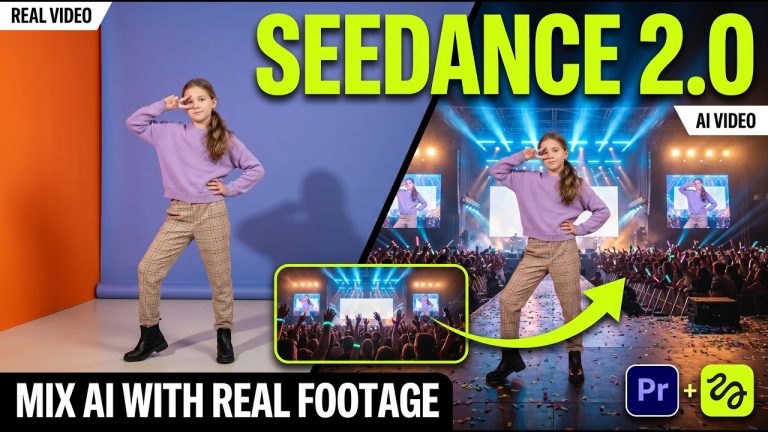
Higgsfield’s plugin for Adobe Premiere Pro and After Effects now lets editors drop AI-generated shots straight into a real timeline, no browser tab, no export-and-reimport. It installs once, shows up under Window > Extensions, and its most useful trick for working editors right now is running Seedance 2.0 directly against footage you actually shot on a camera, not a text prompt starting from nothing.
What The Plugin Actually Does
The panel bundles seven tools: Generate AI Video, Generate AI Image, Reframe, Remove Background, Upscale, Draw to Edit, and Edit Video, according to Higgsfield’s own plugin page. The one editors are talking about is Edit Video, which takes a clip already sitting on your timeline and runs a prompt-based AI pass on it in place. Creator Kush Sharma, walking through it on Creative Pad Media, put it plainly: “The best part is that you never have to leave the Premiere Pro interface to achieve this.” His tutorial runs seven separate examples of the plugin editing real, camera-shot footage with Seedance 2.0 without a single round trip to a web app.
The Actual Steps
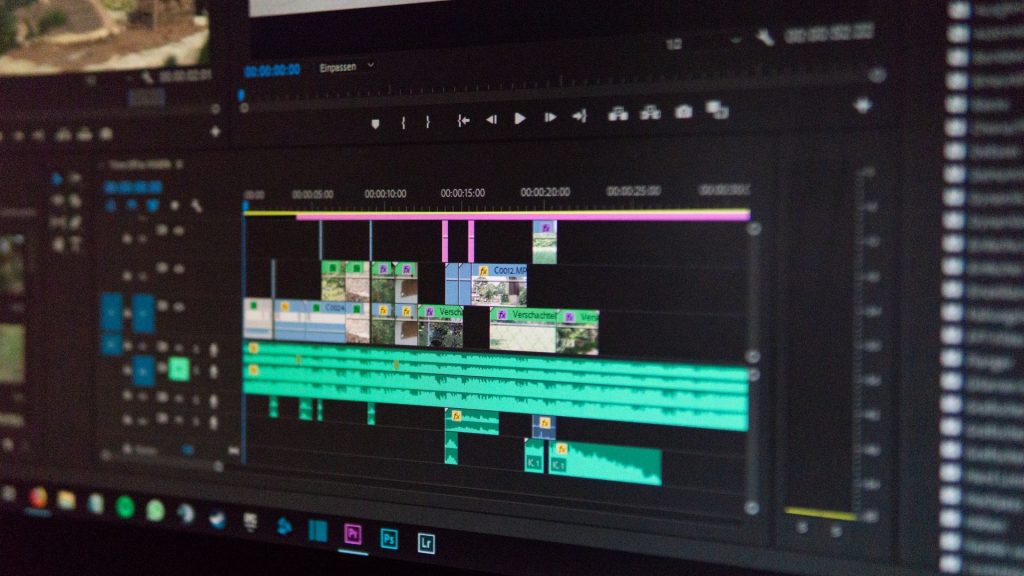
Installation is a single ZXP-style installer for Windows or a signed .dmg for Mac, per Higgsfield’s own documentation, then Window > Extensions > Higgsfield inside Premiere or After Effects. Once you’re in, the workflow Sharma demonstrates is: select the clip, write a plain-language edit prompt (he suggests screenshotting a frame and running it through ChatGPT first to get a more detailed, model-friendly prompt), and apply. Two limits matter here, flagged separately by Phantom Editor’s writeup of the plugin: keep the source clip under 30 seconds, since the tool only reads the first 15 seconds from the clip’s start point, and expect the plugin to want at least 4 seconds of selected timeline to work with, or it pads the selection and generates frames you didn’t ask for. There’s also a Draw-to-Edit mode, useful when you want to mask and swap a specific subject rather than typing a prompt precise enough to isolate it.
The Real Skill Is Making It Not Look Pasted On
Higgsfield’s own Academy runs an 11-module course called “Add AI VFX to Real Footage,” built specifically around Seedance 2.0, covering world swaps, added creatures, and full handheld shots edited one sentence at a time. The course description is direct about what actually separates a convincing composite from an obvious one: the point isn’t the generation, it’s matching the VFX lighting to the original plate so the added element doesn’t sit on top of the shot instead of inside it. That’s the same problem editors have always fought with green-screen composites and stock B-roll, just moved one step earlier in the pipeline. Seedance 2.0 is built to hold onto the original physics, camera movement, and subject identity of the plate it’s editing, which helps, but it doesn’t automatically fix exposure or grain mismatch between what the camera captured and what the model generated on top of it.
That’s the gap a grain pass closes. If you’re cutting a Seedance-generated insert next to footage shot on an actual camera, running both through a matching film grain overlay, rather than leaving the AI shot suspiciously clean and the real shot naturally noisy, is a fast way to hide the seam. Grainzilla’s own 1080p Film Grain Pack 2.0 exists for exactly this kind of mismatch, unifying disparate sources under one consistent texture rather than trying to color-match two fundamentally different image pipelines by eye.
When Not To Reach For It
Phantom Editor’s writeup is worth reading precisely because it’s not a hype piece. Its advice: don’t default every clip to cloud processing, since generations cost credits and a failed run still burns them. Save Higgsfield for hero shots and one-off fixes, and use Premiere’s native Ultra Key or Color Key for straightforward tasks like pulling a clean background off talking-head footage, which costs nothing and runs instantly. It also flags that different underlying models handle the same prompt differently, so switching between Seedance and Kling for the same task, and testing on a duplicate clip before committing, is standard practice among people actually using this daily rather than just posting demo reels.
None of this replaces the editor’s eye. The plugin gets an AI shot onto your timeline in seconds. Whether it belongs there, whether the light matches, whether the grain reads as one continuous world instead of two stitched-together sources, that’s still a decision nobody but the person cutting the sequence gets to make.
Sources:
Kush Sharma, Creative Pad Media, “Mix REAL Footage With AI – Higgsfield Premiere Pro Plugin + Seedance 2.0,” June 19, 2026
Phantom Editor, “3 Things to Know About the Higgsfield Premiere Plugin,” June 4, 2026
Plugin Play, “Higgsfield Launches AI Plugins for Premiere Pro and After Effects,” June 10, 2026
Higgsfield, “Higgsfield Plugins for Adobe Premiere Pro & After Effects” (official product page)
Higgsfield Academy, “Add AI VFX to Real Footage” course (Seedance 2.0)
Creative Pad Media, “Mix REAL Footage With AI – Higgsfield Premiere Pro Plugin + Seedance 2.0” (YouTube)
Grainzilla, “1080p Film Grain Pack 2.0” (product page)