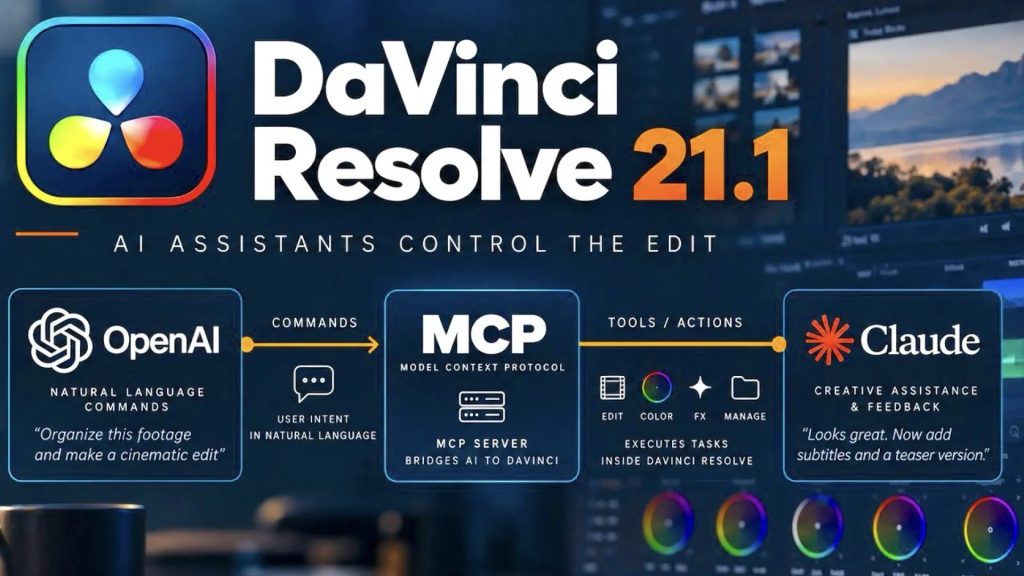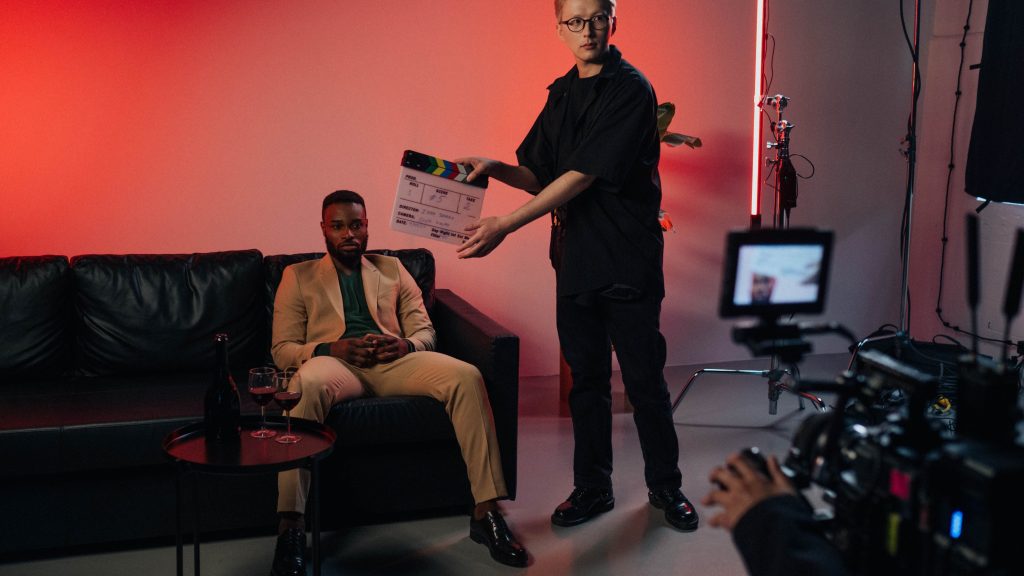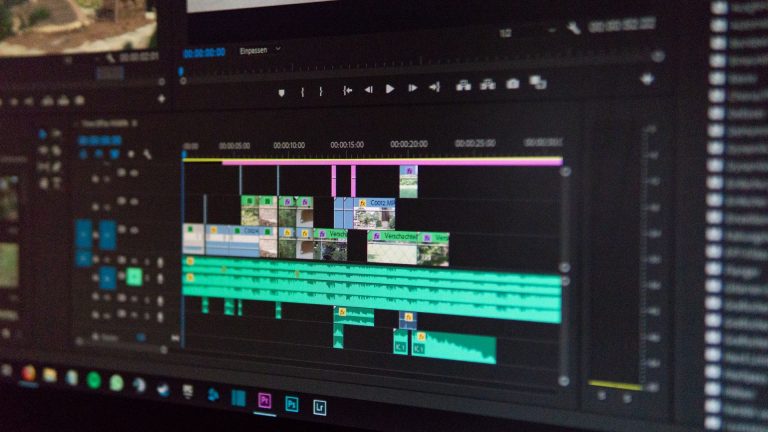
Video engineer Werner Robitza published a genuinely useful workflow this month: using Claude Code to read the transcripts of every take in a multi-take shoot, pick the best version of each passage, and hand off a ready-to-import rough cut to DaVinci Resolve. No plugin marketplace, no waiting on a vendor’s roadmap, just an LLM doing the tedious first pass of assembly editing so a human editor can start from a real cut instead of a blank timeline.
Robitza, who also maintains the widely used ffmpeg-normalize tool, laid out the pipeline in detail on his site rather than pitching a product. He mentions ButterCut, an existing Claude Code plugin built for exactly this kind of editing assistance, but says he hasn’t fully explored it, preferring to build his own version so he understood every step. That’s worth noting for anyone trying this: you don’t need to wait for a purpose-built app. The building blocks are a transcription tool, a general-purpose LLM, and an XML format that’s been sitting in Final Cut Pro’s toolbox for over a decade.
Step One: Get Word-Level Timestamps, Not Just Text
The whole pipeline depends on knowing exactly when each word starts and stops, not just what was said. Robitza tested several transcription options: WhisperX, which aligns text using phoneme models for precise per-word timing; whisper.cpp, the open-source option with experimental word-level timestamps; MacWhisper, a paid tool that outputs millisecond-precision JSON; and OpenAI’s API, which supports a verbose_json response format with the whisper-1 model. Whichever tool you use, there’s a gotcha worth remembering before you build anything on top of it: “you always need to add the audio start offset to every word time,” since the transcript’s internal clock starts at zero regardless of where that clip actually falls on set.
Step Two: Let the LLM Pick the Best Take, Line by Line
With timestamped transcripts for every take in hand, Robitza feeds them to Claude Code or Codex and has the agent read across all of them at once, choosing the best version of each passage based on narrative coherence and delivery rather than just picking whichever take was shot first. The output isn’t a video file, it’s an edit decision list: which source file, which in-point, which out-point, passage by passage. This is the part that actually saves time on a real shoot, since scrubbing through six takes of the same line to find the one with the right emphasis is exactly the kind of task that eats an editor’s afternoon for no creative payoff.
Step Three: Convert the Cut List to FCPXML
The LLM then converts that edit decision list into a Final Cut Pro XML file, which DaVinci Resolve can import as a timeline even though it’s not an Apple tool. This is the fiddliest part of the process on paper: the XML needs correct asset paths, durations, frame rates, and resolutions, with every timecode expressed as a frame-accurate fraction like 830303/25s rather than a rounded decimal, plus cumulative offsets so clips land in the right place relative to each other. It’s exactly the kind of bookkeeping an LLM handles well and a human handles by making one fencepost error per timeline.
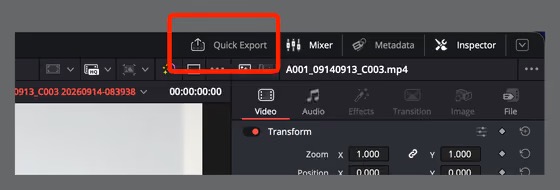
Screenshot: Werner Robitza, slhck.info.
Steps Four and Five: Finish Like a Human, Subtitle Like the Platform Demands
Once the rough cut lands in Resolve via File → Import → Timeline, the actual editing judgment takes over: audio normalization, tightening clip boundaries, adding L-cuts and J-cuts so dialogue doesn’t feel stitched together, and dropping in transitions and zooms where the cut needs them. For loudness specifically, Robitza recommends targeting -16 to -14 LUFS, either through Resolve’s own normalization on the Delivery page or through his ffmpeg-normalize tool directly.
Subtitles get the same re-transcribe-and-import treatment at the end, but with two different formatting targets depending on where the video is headed: a standard style capped around 22 characters per line and held for about 4 seconds, or a TikTok-style format of just 1 to 3 words per card, a 14-character cap, and a 1.5-second hold. Both get imported the same way, through File → Import → Subtitle.
Where It Actually Breaks
Robitza is upfront about the failure points, which is more useful than a pipeline that pretends to be flawless. Smaller transcription models stumble on acronyms and domain-specific terminology, meaning manual correction passes are often unavoidable before the LLM ever sees the transcript. DaVinci Resolve stores projects in an internal database rather than portable files the way Premiere does, so the FCPXML import is a one-way door, not a live link back to the assembly step. Only one subtitle track can be active in Resolve at a time. And if the frame rate baked into the XML doesn’t match the actual source footage, clips show up as offline media instead of failing loudly and telling you why.
None of that makes this a gimmick. It makes it a real pipeline with real edges, built by someone who actually ran footage through it rather than someone demoing a slide. The tedious 80 percent of a multi-take assembly, deciding which of six line readings actually works, is exactly the kind of judgment call that used to require a human sitting through all six. Now it requires a human checking the LLM’s homework instead, which is a meaningfully different job.
Sources:
Werner Robitza (slhck.info) — “From Transcripts to Timelines: Rough Cuts with LLMs”