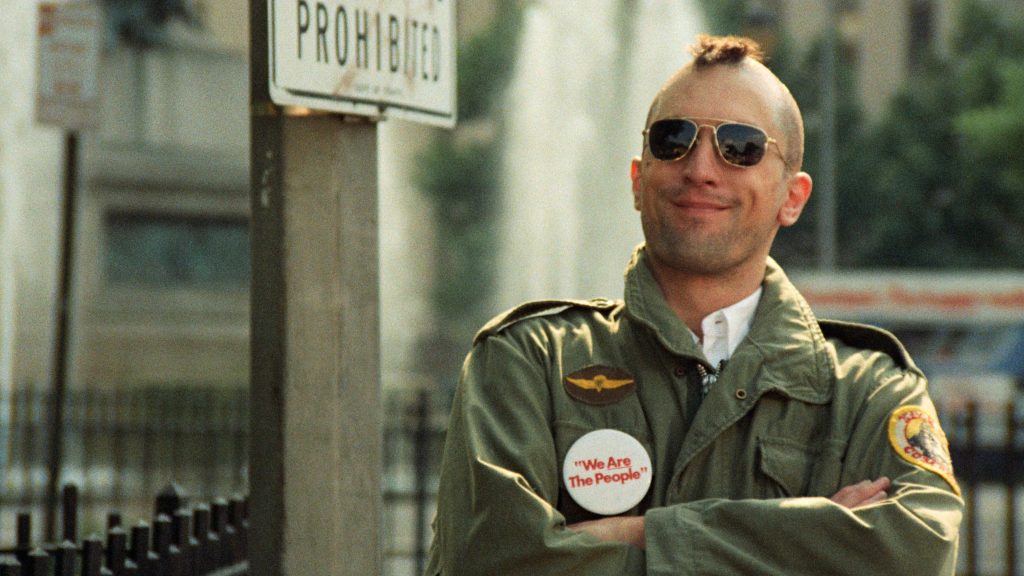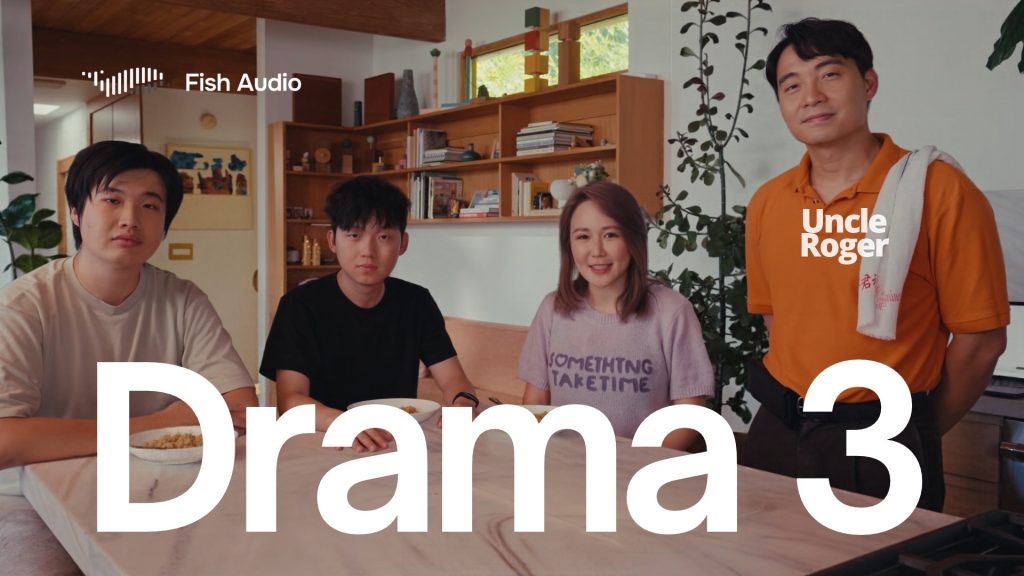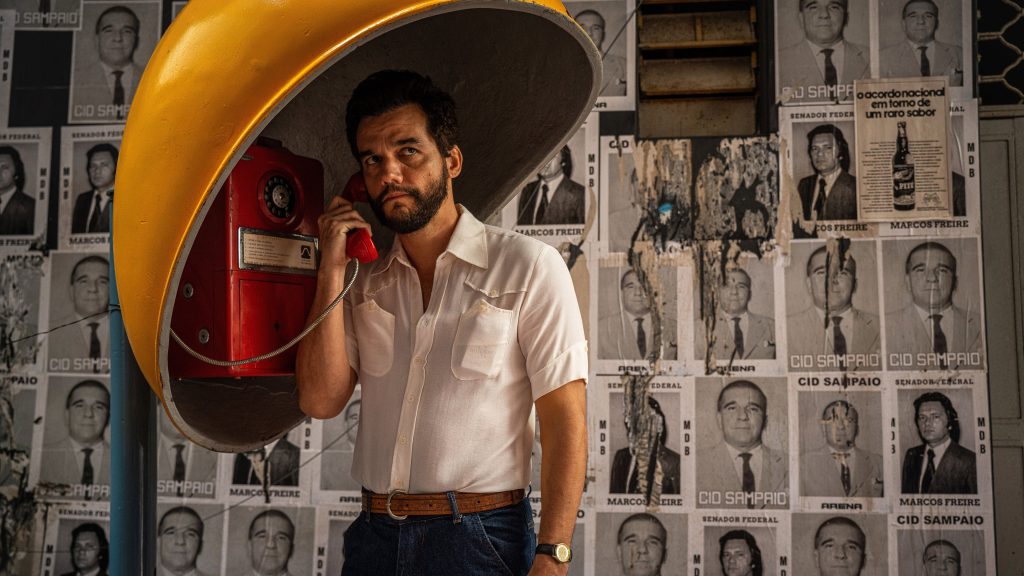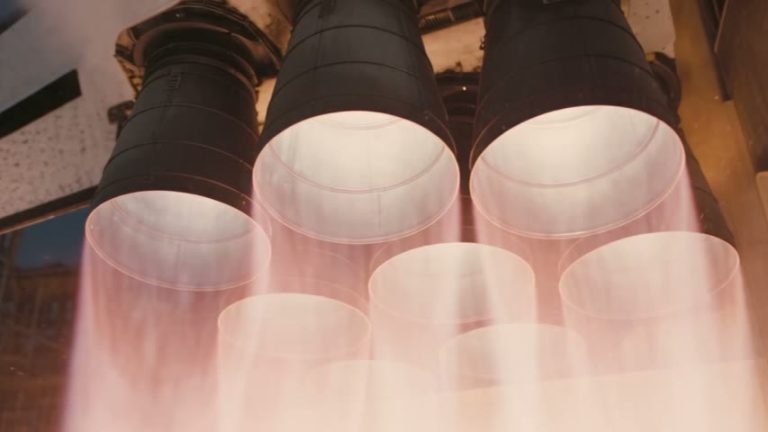
Image: A Seedance 2.5 Draft Mode sample frame, via ComfyUI Wiki
Seedance 2.5 Draft Mode lets you test a video prompt at 480p, then render the one take you like at 1080p without the model re-rolling it. For anyone paying per second of generation, that changes how you work: you stop paying full price to find out that the camera move is wrong.
This guide covers how the draft-to-final workflow runs, what to check at the draft stage, and how to finish the result in an edit. Everything below is taken from Runway’s changelog, the ComfyUI documentation, fal’s guide and invideo’s model page. I haven’t invented menu names, so where a platform’s own docs don’t spell something out, I say so.
What Seedance 2.5 and Draft Mode Are
Seedance 2.5 is ByteDance’s video model, the successor to Seedance 2.0. fal lists clips from 4 to 30 seconds, up to 50 reference files across images, video and audio, and audio generated alongside the picture at no extra charge. invideo adds region editing, so you can fix part of a frame without regenerating the whole shot, and says the model adheres to prompts about 20% better than 2.0. That is invideo’s claim, not a test.
Draft Mode splits generation in two. ComfyUI’s documentation describes a 480p draft you check for composition, motion, dialogue and camera movement, and a 1080p final built from that same draft. Runway’s changelog says Draft Mode is available on all plans, with post-generation enhancement that the interface suggests automatically and you can toggle on or off.
The Workflow in ComfyUI
ComfyUI’s pages are the most explicit about the steps, so use them as the reference even if you work elsewhere.
First, pick the Seedance 2.5 Draft model on the workflow node and give it your prompt, a first frame, or reference images. ComfyUI ships three templates for those cases: text-to-video, image-to-video and reference-to-video. A first-and-last-frame variant was also added.
Second, run it. The draft renders at 480p, and a Save Text node writes out a draft task ID.
Third, paste that ID into the “ByteDance Seedance 2.5 Draft to Final Video” node and run it for the 1080p render. Settings carry over from the draft, so you don’t re-enter them.
Two rules matter. Drafts stay renderable for 7 days, so approve or abandon within a week. And fix the seed on the draft node before you queue the final: according to the ComfyUI Wiki, without a fixed seed “the next run creates a new draft instead of reusing the take that was reviewed.” Both the draft and the final are billed.
What to Check in the Draft
A 480p preview can’t tell you about skin texture or fine detail, so don’t judge those. It can tell you the things that actually sink a shot:
Does the camera move the way you wrote it? Is the subject’s action finished before the clip ends? Do reference characters keep their faces? If you asked for speech, does the mouth match? Since Seedance generates audio with the picture, listen to the draft with the sound on.
Here is a practical example prompt I wrote for this guide, not one from the documentation: “Slow push-in on a lighthouse keeper climbing a spiral staircase, handheld, warm lantern light against cold blue windows, footsteps echoing, distant waves.” Run it as a draft three or four times, change one variable per run (camera move, then lighting, then action), and only then commit to a final.
What It Costs
I couldn’t find Runway’s credit costs for Draft Mode, and its help page wasn’t reachable, so check the in-app price before you commit. For rough scale, fal’s published rates are about $0.2205 per second at 480p and $0.4730 per second at 720p. At those numbers, six five-second 480p tests come to about $6.60, against about $14.20 for six at 720p. Fal’s guide lists 480p and 720p rather than a 1080p tier, and doesn’t mention Draft Mode, so treat this as an estimate of the saving, not a Draft Mode price.
Getting It Into Your Edit
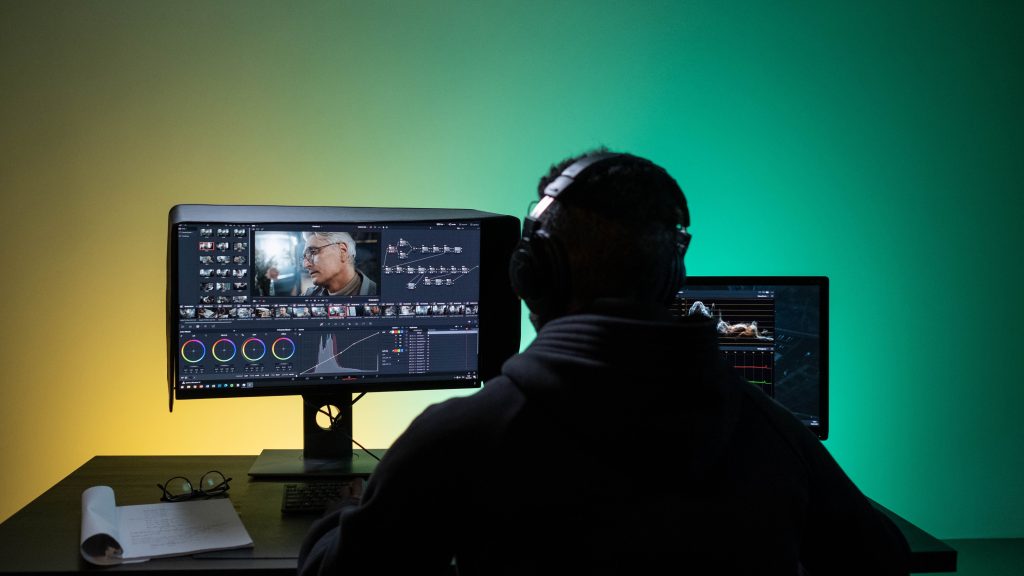
Download the 1080p final and drop it on a timeline at its native frame rate. Conform the color first. AI clips arrive with a clean, slightly plastic look, so grade them to match your camera footage before you touch anything else. Next, sound: the audio generated with the clip is a decent guide track, but replace dialogue and key effects in your normal audio pass.
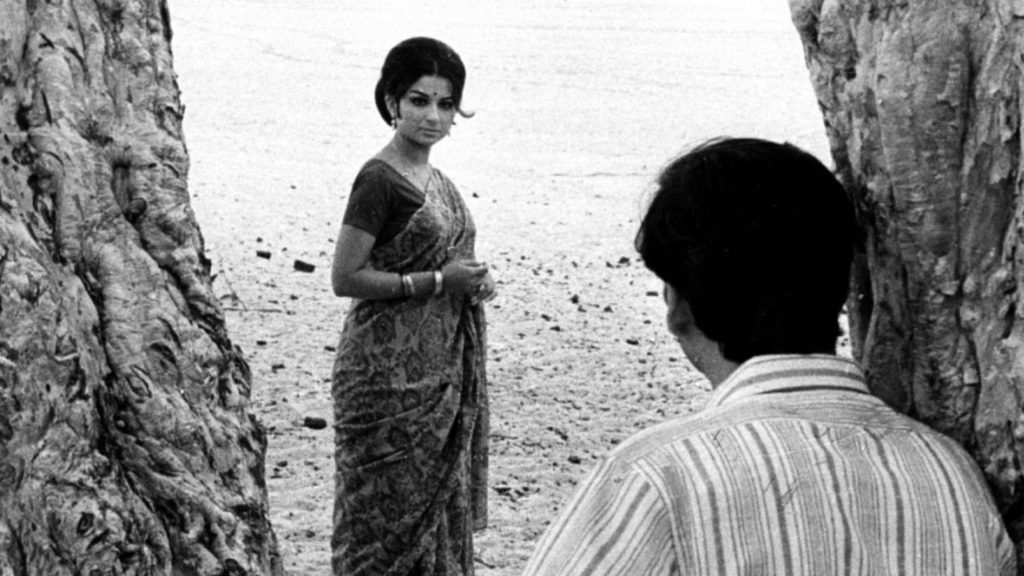
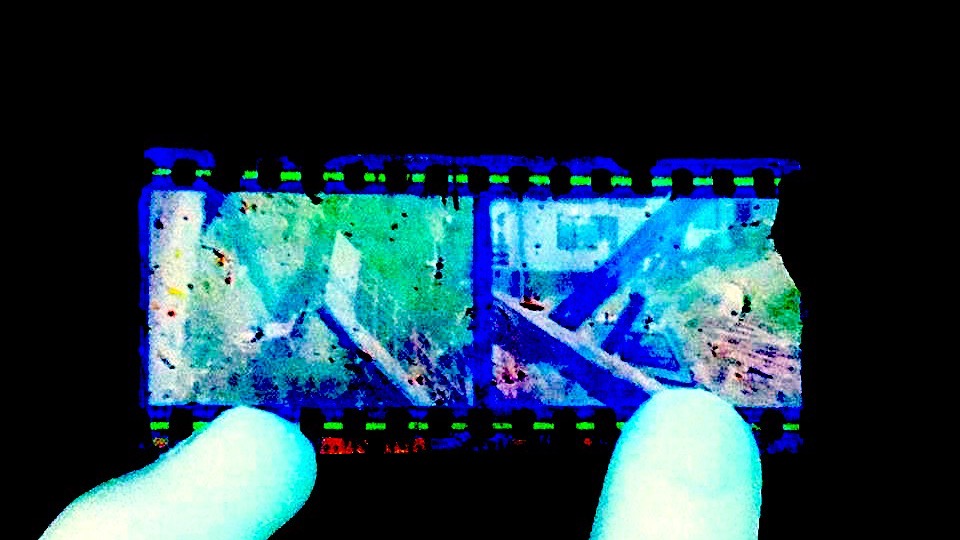
Last, texture. Synthetic video is smooth in a way film never is. A real 35mm scan laid over it at low opacity does more to unify a generated shot with live footage than any filter. Grainzilla’s free film grain downloads are a way to try it, and the guide to adding film grain in Premiere, Resolve and Final Cut shows the blend modes. If you work in Resolve, Runway’s changelog also lists a plugin that opens its tools inside DaVinci Resolve for paid plans.
Where It Falls Short
Draft quality is no promise of final quality: the final is a higher-resolution pass that reuses the draft’s composition and motion, so check the finished clip closely for fine detail before you deliver it. Availability also varies. Resolution tiers and pricing differ between Runway, ComfyUI, fal and invideo, so confirm what your platform offers before you plan a budget around it.
Draft first, commit second. It’s the same discipline as a rough cut before a conform.
Sources: Runway, Product Updates & Changelog (Oct. 2, 2026 and Sept. 23, 2026 entries); ComfyUI Docs, “Seedance 2.5 Draft”; ComfyUI Wiki, “Seedance 2.5 Draft Mode Arrives in ComfyUI” (Sept. 25, 2026); fal, “How to access Seedance 2.5 on fal”; invideo, “Seedance 2.5”.