Image: Lightricks, via ltx.io
LTX-2.5 is the open-weights video model from Lightricks that generates video and audio together, and ComfyUI supports it natively. That means you can go from a prompt or a still to a multi-shot clip with sound on your own machine, and then drop the result into Premiere Pro, Resolve or Final Cut. This guide walks through the ComfyUI route, using the settings and file names from ComfyUI’s own LTX-2.5 documentation, and what to do with the clip afterward.
What You’re Getting
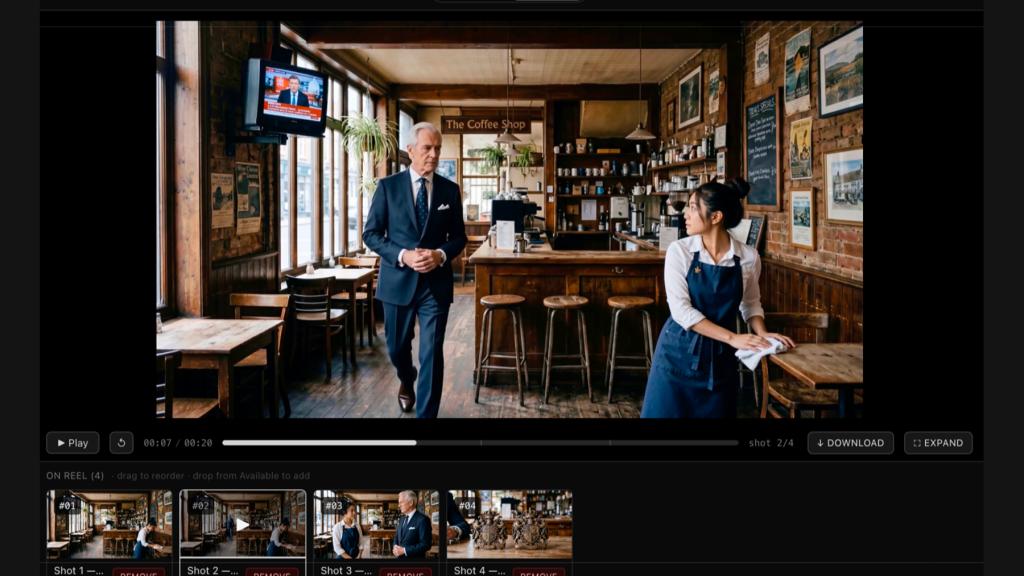
The headline feature is native multishot. Per NYU Shanghai’s write-up of the release, one generation can produce “several connected shots that hold character, environment, lighting, and voice across the cuts,” instead of one continuous take you have to stitch to others. The model also predicts clip length from the action you describe, so you stop guessing a duration. A diffusion video decoder replaces the usual VAE step and is credited with “sharper faces, textures, and on-screen text, better motion, and fewer artifacts.”
For an editor, multishot is the interesting part. A generated sequence arrives with coverage already in it, a wide and a closer angle with the same character, and you decide where the cuts breathe.
Before You Install: Hardware and License
Lightricks claims a “16GB VRAM floor,” according to that same NYU write-up, with quantized builds for smaller cards. Treat that as a floor for patience, not comfort. Note also that the older ComfyUI-LTXVideo repository README still lists LTX-2.3 file names and asks for 32 GB or more of VRAM, so check which version of the instructions you are reading before you download the wrong files.
On licensing, the model card on Hugging Face says organizations under $10 million in annual revenue can use it free under the LTX-2.x Community License, while larger ones need a paid commercial agreement. LTX CEO Zeev Farbman’s pitch, quoted by NYU Shanghai: “By keeping LTX open, we let teams own their hardware, their IP, and their model.”
Setting It Up in ComfyUI
ComfyUI’s documentation lists the steps.
- Update ComfyUI to the latest version, so the native LTX-2.5 templates appear.
- Request access to the gated Lightricks/LTX-2.5 repository on Hugging Face.
- Download the model files the docs list: the distilled transformer (the docs list the int8 convrot build), the Gemma 4 12B text encoder, the video and audio VAEs, and, for text-to-video and image-to-video, the 2x latent spatial upscaler.
- Put them in the standard folders: diffusion models, text encoders, VAE, and latent upscale models under ComfyUI’s models directory.
- Open the template library and choose one of three workflows: Text to Video, Image to Video, or FLF2V, which interpolates between a first and last frame.
ComfyUI also documents a fourth, DFR, for production-quality work, which builds scenes on a grid of keyframes first. Start with the plain templates and graduate to DFR once you know what you want.
Writing Prompts That Work
The docs give a different instruction per workflow, and it is worth following to the letter.
- Text to Video: “Describe the whole scene,” including shot type, action, characters and camera movement. Add the sounds and dialogue you want, since audio is generated in the same pass.
- Image to Video: describe what happens next, not what is already visible in the frame. The docs suggest anchoring the start with wording like “Use the provided start image as the first frame.”
- FLF2V: describe the transition between the two frames, and use matching aspect ratios.
Lightricks’ own examples are short: “A golden retriever running through a sunny meadow, cinematic lighting,” and “The camera slowly dollies out as wind moves through the grass.” RunComfy’s guide to the text-to-video workflow adds a shot-language formula, “subject + setting + lighting + lens + motion,” and a plain tip: “Start short, then extend duration once motion reads clearly.” It also advises keeping camera motion gentle on face-centric shots.
ComfyUI includes an optional prompt enhancer that rewrites short prompts into detailed ones. The docs say it is a small extra model of about 5 GB and adds a minute or two to each generation, so turn it on when you are stuck, not by default.
Frame Rules and Known Weak Spots
Two technical rules will save you an error message. Per the model card, width and height must be divisible by 32, and the frame count must satisfy num_frames % 8 == 1. Set resolution inside the graph rather than resizing afterward, which RunComfy also recommends.
RunComfy flags the failure modes: longer clips compound small problems, excessive sharpening can bloom highlights, and asking for heavy fine texture can reduce motion clarity. Lightricks also admits that its speed comparisons against rival models are “not like-for-like.” Believe the workflow, not the benchmark chart.
Getting It Into Your Edit
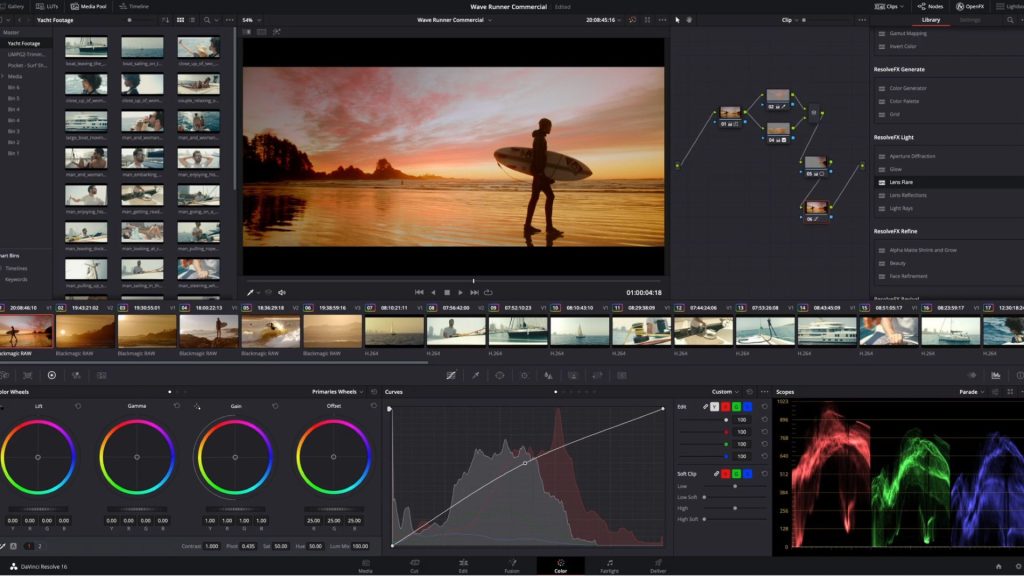
Export the highest-quality file the workflow offers and bring it into your NLE like any other clip. Cut the multishot output at the shot changes, so you can trim each angle independently and cover the seams with sound. Generated audio is a guide track at best; rebuild dialogue and room tone yourself.
Then deal with the plastic look. Clean, uniform pixels are what give AI video away next to camera footage. Match the clip to your real shots in the grade first, then lay a real film scan over it. Our guide to adding film grain in Premiere Pro, DaVinci Resolve and Final Cut Pro covers the mechanics, and our free film grain download is a ProRes file you can try on a generated shot in a minute.
The Takeaway
LTX-2.5 will not replace a shoot. It will give you coverage you could not afford to film, on a machine you already own, with the cut left to you. That is the part of the job a model cannot do.
Sources: ComfyUI Docs, LTX-2.5 ComfyUI Workflow Examples; NYU Shanghai RITS, LTX-2.5 Adds Native Multi-Shot Video and a Diffusion Decoder; Lightricks, LTX-2.5 on Hugging Face; Lightricks, ComfyUI-LTXVideo on GitHub; RunComfy, LTX 2.5 ComfyUI Text to Video; ComfyUI Wiki, LTX-2.5 release.