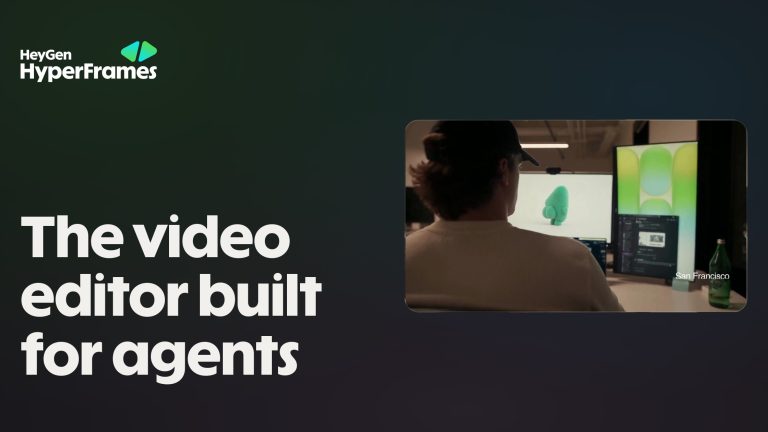
Image: HyperFrames Studio promo image, via HeyGen HyperFrames docs
HyperFrames turns a plain-English description into a rendered video by having Claude write HTML, CSS and JavaScript for it, then rendering the result frame by frame. It is open source, made by HeyGen, and it is the engine behind a lot of the motion graphics and explainer clips people post as Claude Opus 5.5 demos. This guide walks through the full loop: install, prompt, preview, check, render, and finish the clip in your editor.
What You Need Before You Start
Per the HyperFrames README, you need Node.js 22 or newer and FFmpeg installed. The project is Apache 2.0 licensed, with no per-render fees. You also need an AI coding agent. Claude Code is the one the docs lead with, but the same skills work in Cursor, VS Code, Copilot and Gemini CLI.
The core idea, from the README: a video is defined as HTML, with data attributes for timing and tracks, and animation comes from GSAP, CSS, Lottie, Three.js or similar seekable tools. The renderer seeks to each exact frame in headless Chrome and encodes it with FFmpeg, so the same project always produces the same video. For an editor, that determinism is the point. There is no live screen capture to stutter.
Step 1: Install the Skills
In Claude Code, the README gives two commands:
claude plugin marketplace add heygen-com/hyperframesclaude plugin install hyperframes@hyperframes
If you use another agent, npx skills add heygen-com/hyperframes installs the standalone skills instead. Then make a project folder and start your agent inside it.
Step 2: Prompt It Like a Director
The quickstart shows the simplest possible request: “Using /hyperframes, make a 10-second product intro for [URL].” In Claude Code the entry skill is /hyperframes:hyperframes.
Vague prompts get generic results. HyperFrames’ own verified example prompts are written as beats with timecodes. One of them starts: “/hyperframes 6-second 1920×1080 video, dark navy background. Beat 1 (0-1s): label ‘ARR’ fades up small, top-center. Beat 2 (1-4s): a giant number counts up to $4.2M with an odometer roll, easing out as it lands. Beat 3 (4-6s): ‘+312% YoY’ stamps in below in green…” It ends on what the docs call a spectacle beat: one moment designed to be the memorable one.
That structure is worth stealing: format and size first, then beats with durations, then one hero moment. It reads like a shot list because it is one.
Step 3: Borrow From the Prompt Gallery
Skillry collects what people have made with Claude Opus 5.5, with the exact prompt each creator used. At the time of writing it lists 418 videos, split across motion graphics, explainers, 3D scenes and games. A few of the prompts are short enough to quote in full, like @MondemSuraj’s: “Build the Golden Gate Bridge in a single HTML file using Three.js. Include rolling fog, water effects, and traffic moving on the deck.” Others, like @heyiamnick’s 30-second looping motion design showreel, run much longer and set up a whole visual concept.
Read three or four before writing your own. The pattern is concrete nouns, one clear concept and a stated duration.
Step 4: Preview, Check, Then Render
Run npx hyperframes preview for a live browser preview with hot reload, and keep asking Claude for changes while you watch. The render guide recommends this order before a final export:
npx hyperframes lintvalidates the project structure.npx hyperframes checkflags runtime, layout, motion, media and contrast problems.npx hyperframes render --output final.mp4writes the file.
The docs list --quality draft for fast review renders, standard as the default for finished work, and high for a larger master. Their rendering and output guide advises reserving high for the master you hand off. Default size is 1920×1080 at 30 fps. Asking for 4K supersamples the composition and is roughly four times slower per frame, so only do it for a real 4K delivery. And the docs say plainly: always watch the exported file itself, because preview only proves the project can play.
Step 5: Export for an Editor
Pick the format by what the clip is:
- A full-frame graphic with its own background: MP4, the default.
- An overlay such as a lower third or logo sting:
--format mov, which the docs describe as ProRes 4444 with alpha, editor-grade and large. - Compositing in After Effects or Nuke:
--format png-sequencefor lossless RGBA frames. - Avoid transparent WebM for editing. The docs note its alpha only renders in browsers, not video editors.
One catch for overlays: leave the composition background unpainted, since an opaque html, body or full-frame background gets encoded as visible pixels.
Step 6: Finish It in Premiere, Resolve or Final Cut
A rendered HyperFrames clip is a clean digital graphic, and it will look like one next to camera footage. Three fixes:
- Grade it with the rest of the sequence. Put it on the timeline, then match contrast and color to the surrounding shots so it does not float above them.

- Add grain. Pure digital vector motion has no texture at all. A real film scan overlaid at low opacity glues it to live-action footage. Grainzilla’s free film grain downloads are ProRes 422 files, and the guide to adding film grain in Premiere Pro, DaVinci Resolve and Final Cut Pro covers blend modes.
- Do the sound in your editor, or inside the project. HyperFrames’ voice and audio guide suggests reviewing captions twice, once with sound for sync and once muted for readability, and using voiceover carve to duck music under speech instead of lowering the whole track.
What It Does Well, and Where It Struggles
It is excellent at kinetic type, data counters, logo stings, explainers and social cards, anything built from shapes, text and code-friendly 3D. It is a poor fit for photoreal footage, faces and organic motion, which is what video models are for. It also demands iteration: expect a few rounds of “slower entrance” and “less clutter” before a clip feels right.
If you can describe a shot list, you can direct this tool. The skill that matters is the one editors already have: knowing exactly what should happen in each second.
Sources: HeyGen HyperFrames on GitHub; HyperFrames documentation, Quickstart; HyperFrames docs, Render from the command line; HyperFrames docs, Rendering and output; HyperFrames docs, Verified example prompts; HyperFrames docs, Voice, music, sound and captions; Skillry, Claude Opus 5.5 videos.