Image: YMCinema, via ymcinema.com
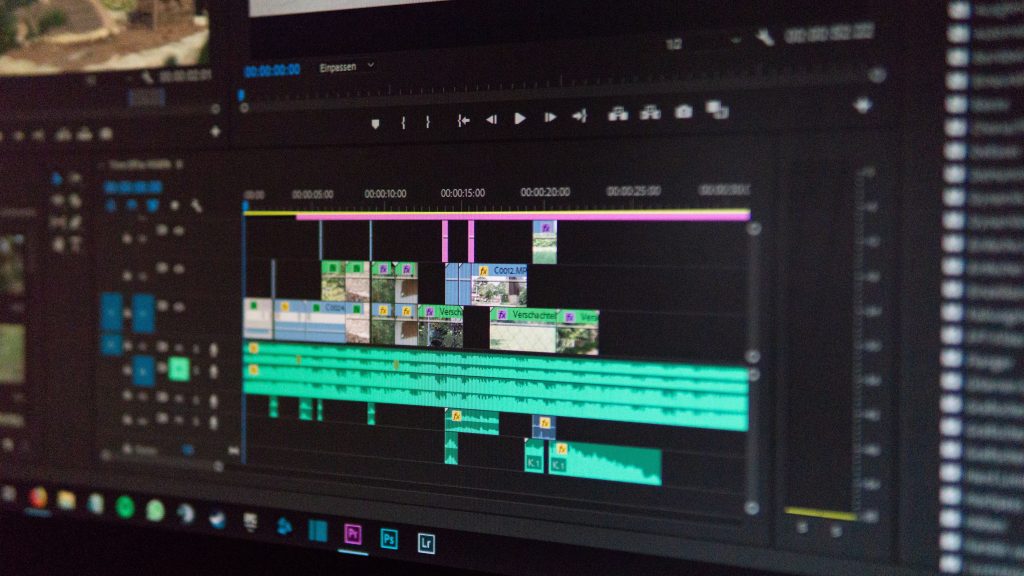
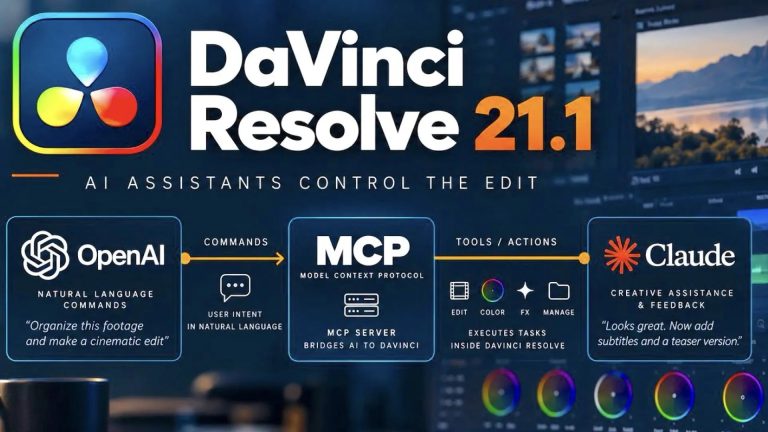
DaVinci Resolve Studio 21.1 includes a native MCP server, which means Claude, Claude Code or ChatGPT Codex can organize media, adjust settings and batch render from a chat window. Blackmagic describes it as letting customers “analyse projects, organise media, adjust settings and batch render using everyday conversational language,” as reported by Newsshooter and CineD. Here is how to set it up, what is worth handing over, and what to keep for yourself.
What You Need Before You Start
The MCP server is a Studio feature. Studio is a one-time purchase of about $295, and the free version of Resolve does not get it, according to Black Hat Editor Tools and ExplainX. You also need an assistant. YMCinema lists Claude Desktop, Claude Code, ChatGPT Codex, Google Antigravity and Grok as supported.
Work on a duplicate. ExplainX warns that projects saved in 21.1 cannot be reopened in Resolve 20.3, and an assistant that can write scripts is not something to point at your only copy.
Setup in Four Steps
1. Install and sign in to your assistant first. YMCinema reports that Resolve detects compatible assistants and configures the MCP server itself.
2. In Resolve Studio, open Preferences, then System, then General, and set “External scripting using” to Local rather than None. That setting comes from ExplainX; Blackmagic’s own announcement does not spell it out, so check it if the connection fails.
3. Choose File, then Setup AI Assistants, and wait for the confirmation.
4. Switch to the assistant, not Resolve. You drive everything from its chat window. Filmit, which sells a rival bridge for Resolve, suggests a quick check by asking “Are you connected to DaVinci Resolve?” and expecting a version number back.
Jobs Worth Handing Over
Scenepaper offers a useful test: “Is it repetitive, can a person check the result quickly, and can it be undone? If all three are yes, it is a candidate.” By that rule, the list is dull in the best way: renaming clips to a naming convention, binning by scene or camera, adding markers and exporting them to CSV, building render queues for proxies and review files, and applying a show LUT to a node you name.
YMCinema adds a few more it saw the integration do: comparing project settings between files, reframing for different aspect ratios, and checking a project against Netflix delivery requirements. The assistant does this largely by writing and running scripts, with the results appearing inside Resolve.
Filmit’s own guide uses this prompt for a first test: “Can you make a backup copy of my current timeline to save it? And on my current timeline, can you cut between camera A and B?” Note the backup comes first. Prompts I would start with, which are my suggestions and not from Blackmagic: rename every clip in the selected bin to scene, shot and take; add a green marker at every cut on the timeline and export the list as CSV; build a render queue of H.264 review copies for every timeline in this project.
Where It Falls Short
Filmit reports that its Resolve integration cannot yet add effects, transitions or keyframes because of limits in Resolve’s scripting API, that a 15-minute two-camera edit took about eight minutes, and that the result was mechanical cuts with no awareness of speech or story beats. That is a third-party bridge rather than Blackmagic’s, but the API ceiling is the same one the built-in server works under, per ExplainX.
The bigger caution comes from Blackmagic itself, as relayed by YMCinema: scripts an AI assistant creates have the same access to disk, network and other system resources as the assistant. ExplainX adds that the official documentation says little about constraining agent behavior, so decide for yourself which bins it may touch and whether deletes need confirmation. And Scenepaper notes there is no independent error-rate data yet, so any speed claim is a hypothesis until you test it on your footage.
Keep the Grade, Sound and Final Pass
Scenepaper’s “do not hand over” list is the one I would tape to the monitor: creative grades and trim passes, final conform and deliverables, quality control against specs, and anything involving deletion, relinking or moving media. Let the assistant clear the clerical work, then do the part that is yours.
That means the grade, the mix, and the texture. If the footage looks too clean, whether it came from a generator or a digital camera, a real film scan over the final grade is the finishing step. Our walkthrough on adding film grain in Premiere Pro, DaVinci Resolve and Final Cut Pro covers the Resolve steps.
An assistant can name the clips and build the render queue, but it still cannot tell you which take is the one.
Sources: Matthew Allard ACS, Newsshooter, CineD, YMCinema, ExplainX, Geenesh S, Scenepaper, Filmit, Black Hat Editor Tools.