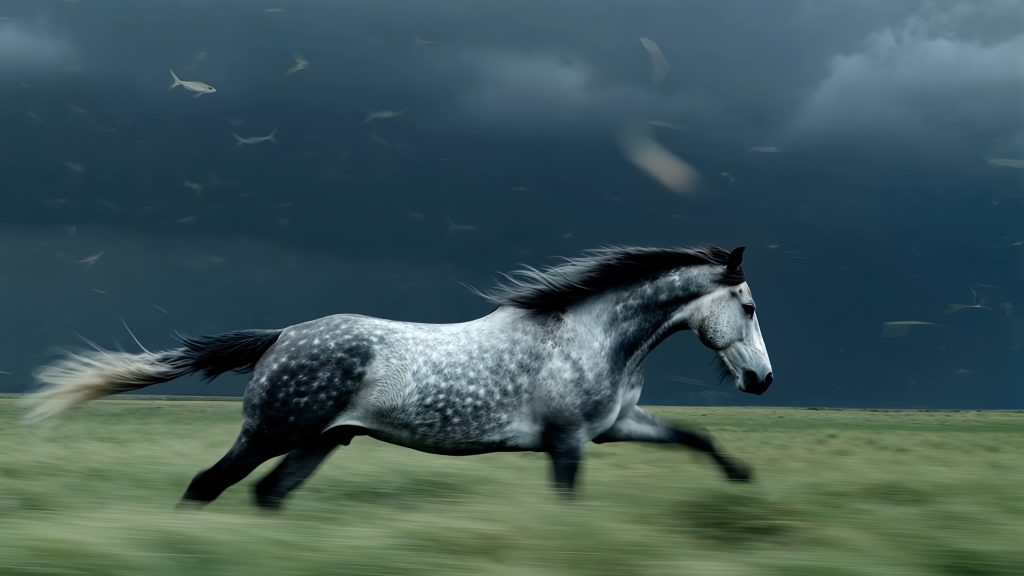
Image: Google, via the Gemini API image generation documentation
Nano Banana 2.1, Google’s latest image generation and editing model, is the most practical AI image tool a video editor can open this week, mostly because of what it does to a still you already have. Give it a frame, tell it what to change and what to leave alone, and it edits the picture instead of reinventing it. This guide covers the workflow that matters for editors: thumbnails, key art, storyboard frames and plates, and how to bring the results into a timeline.
Where to Use It and What It Costs
Google says the model is rolling out across the Gemini app, AI Mode in Search, Google AI Studio, Flow and Stitch. Developers call it through the Gemini API as gemini-nano-banana-2.1, which Google’s documentation calls the default high-efficiency option and recommends for new projects. Nano Banana Pro (gemini-3-pro-image) remains the premium model for complex work.
On the API, ARY News reports a 1K image costs about 3.4 cents and a 4K image about 7.6 cents, with batch jobs 50% cheaper, though input pricing rose, so heavy reference-image users may save less than the headline suggests. Check current rates before you budget a project.
Edit With Words, Not Masks
The documentation describes inpainting as conversational: you name the element to change and state that everything else should stay the same. Its own examples read like a note to an assistant: “Update this infographic to be in Spanish. Do not change any other elements of the image.”
For editors, that translates into three habits.
- Upload the frame and name one change per instruction (“replace the sky behind the actor with an overcast evening sky”).
- Restate what must not move: lighting, composition, background objects.
- Keep editing in the same conversation. The docs call multi-turn conversation the recommended way to refine an image, and in the API you pass
previous_interaction_idto continue.
Google says the model matches the original’s style, lighting and perspective when it edits. Check that claim on skin, hair edges and reflections before you trust it.
References for Consistency
Nano Banana 2.1 accepts up to 14 reference images in total. Per the docs, that means up to 10 object images and up to 4 character images on the 2.1 model. Use them for a recurring character across a storyboard, a product that has to stay on-model, or a logo that must not be redrawn. Repeat the style, color and lighting details in every prompt, because consistency drifts when the prompt does.
Google’s model card, as reported by ARY News, is candid about limits: small text can look blurry at 1K, people do not always match their references, and left and right are sometimes confused. Plan on regenerating when a character’s face matters.
Output Settings for Video Work
- Aspect ratios include 16:9 and 9:16, which cover YouTube, Reels and Shorts.
- Resolution is 1K, 2K or 4K, with 1K the default. Use an uppercase K or the API rejects the request.
- Thinking is on by default and can be set to minimal, medium or high on 2.1 (medium is the default). Thinking tokens are billed even if you never read them.
- Add negative space on purpose. The docs suggest describing where the empty area should sit, for example bottom-right, so you can put titles over it later.
A Thumbnail Workflow That Starts From Your Video
One feature suits editors directly: video-to-image. The docs say 2.1 can take a public YouTube URL or a file uploaded through the Files API and generate thumbnails, posters or infographics based on that video’s content. Start there, then use conversational edits to fix expression, background and text. Name the exact words, a font style and the color scheme for any title, since the documentation says to specify all three for reliable text.
If a thumbnail needs real-world accuracy, the model can use Google Search grounding. On 2.1, image search is available too, and the docs require you to display the search suggestions when you use it.
Getting It Into Your Edit
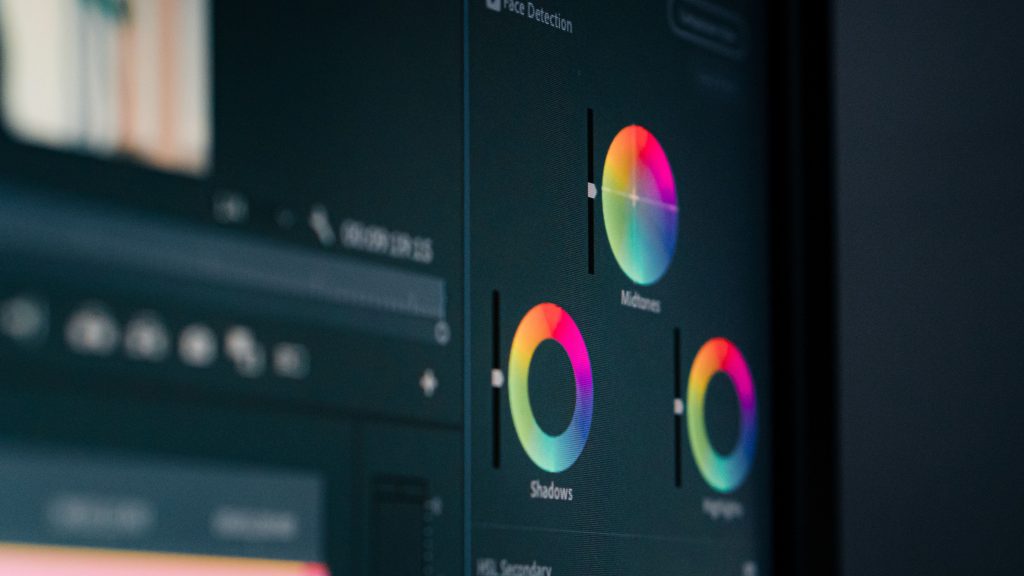
Download at the largest size you can afford, then treat the image as a plate. In Premiere Pro, DaVinci Resolve or Final Cut Pro, place it on the timeline, add a slow push with keyframes, and grade it to match the surrounding footage. AI stills tend to look too clean, so add texture. A real film scan laid over the frame brings back the irregularity that generated images lack; our grain guide walks through the blend settings in all three editors, and the free grain download is a fast way to test it.
Every image the model makes carries a SynthID watermark, per the documentation. Keep that in mind for client work and platform disclosure rules.
Where It Falls Short
Independent testing is thin. ARY News notes there were no independent tests at launch and calls the release a solid update rather than a leap, with price as the main advantage. Google’s benchmark figures come from its own raters. Run your own test: make a three-step edit chain on one frame, and check whether faces, clothing and background drift.
A still model is only as useful as what you do next with it. Generate the frame, fix it in conversation, and then give it the grade and grain that make it sit beside the footage you actually shot.
Sources: Gemini API documentation, “Image generation,” Google AI for Developers; Kumail Shah, “Google launches Nano Banana 2.1 with improved image editing and lower API costs,” ARY News (Oct. 7, 2026).