Image: Suno, via suno.com
Suno can give a video editor a custom music bed in a few minutes, and its current v6 models run up to eight minutes per generation, long enough to score a whole scene without looping. This guide covers the workflow that matters for video: picking a model, prompting for an instrumental, steering the result, exporting stems and WAVs, and understanding what the license actually gives you before a track goes into client work.
Pick the Right v6 Model
According to Suno’s help center, there are three variants. v6 is the balanced core model for everyday creation and is available to Pro and Premier subscribers. v6-wild is experimental, favors unexpected choices and genre-blending, and often departs from the prompt, also for Pro and Premier. v6-mini is lighter and faster, aimed at quick ideas and testing concepts, and is available on all plans. All three can generate up to eight minutes, and you switch between them in the model picker.
For picture-locked work, start in v6-mini to test the mood, then move to v6 for the keeper. Save v6-wild for when you want a surprise, not a spec.
Write a Prompt for Picture, Not for Radio
Suno offers a Simple Mode, where you describe what you want, and a Custom Mode, where you supply lyrics and more detail. For a score, Custom Mode is more useful. Describe genre, mood, tempo and instrumentation, and say instrumental if you do not want vocals under a voiceover. A prompt like “slow cinematic ambient, warm analog synths, soft piano, no vocals, builds gently” gives the model a clear brief. Suno also publishes a music glossary of terms you can use to write more precise prompts.
Use the Exclude field to keep things out. Per Suno’s instructions, start a Custom Mode song, open Advanced Options, and enter the instruments or elements you do not want in the first field. Typing something like “drums, vocals” there is a quick way to turn a track into a bed.
Fit the Track to Your Cut
Length is the first mismatch between generated music and an edit. Suno’s Extend feature adds music to the end of a song or a new ending. For Pro and Premier users, you can also crop a song to trim unwanted audio at the start or end, and use Replace Section to swap out part of a track that works everywhere except one bar.
Cut to the track’s structure rather than fighting it. Generate three or four takes, listen for where the energy actually rises, and place that moment on your picture change.
Export What an Editor Needs
Downloads are MP3 on every plan, and WAV for Pro and Premier subscribers on suno.com. Video files can also be downloaded. A song counts as one download regardless of format.
For mixing under dialogue, use stems. Per Suno’s stems guide, open More Actions on a song in your Workspace or Library, choose Get Stems, pick a split type and extract it. Get Stems and Auto Split are for Pro and Premier subscribers: Auto Split makes up to 12 stems for 50 credits, Split from Mix isolates one instrument or vocal plus the rest for 10 credits per stem, and Advanced Split, Premier only, lets you choose from nearly 100 instruments. In Suno Studio, exports are WAV: the full song, a selected time range, or every track as multitrack stems. Premier subscribers can also get MIDI for Studio songs.
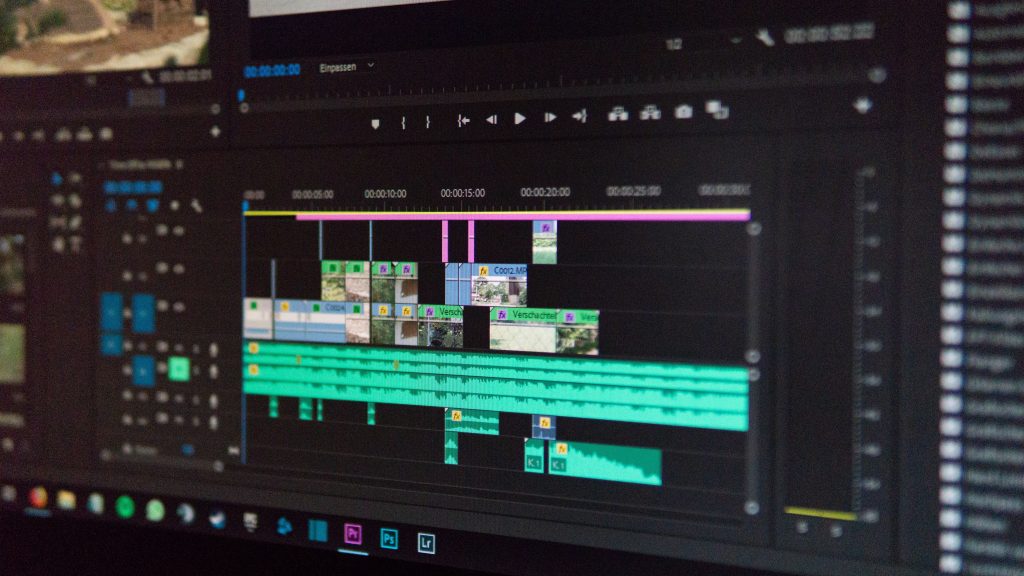
In Premiere Pro, Resolve or Final Cut Pro, put the drums, bass and pads on separate tracks. Pull the pads down under the voiceover, keep the drums for the cut points, and add your own sound design on top.
Check the License Before Delivery
Rights depend on the plan. Free-plan songs are for personal, non-commercial use only. Paid subscribers get commercial use rights for songs downloaded while subscribed, and subscribing later does not retroactively cover songs made on the free plan. Suno also cautions that commercial rights do not guarantee copyright protection, which is decided by your country or region’s copyright office.
For client work, that means: use a paid plan, keep the download date and plan record, and tell the client the music is AI-generated.
Finish the Picture to Match
A generated score is the easy half. If the visuals are AI too, the usual tell is cleanliness. Grade for contrast, add a touch of halation, and lay a real film scan over the footage so it breathes. Our guide to adding film grain covers all three editors.
Suno gets you a first draft of a score quickly, but the edit decides where the music rises and where it gets out of the way.
Sources: Suno Help Center, “What’s new in v6?”; Suno Help Center, “How do I exclude elements of a song?”; Suno Help Center, “How do I get stems?”; Suno Help Center, “What types of files can I download?”; Suno Help Center, “Exporting from Studio”; Suno Help Center, “How long will my song be?”; Suno Help Center, “What rights do I have with a paid subscription?”; Suno Help Center, “What rights do I have with the free plan?”.