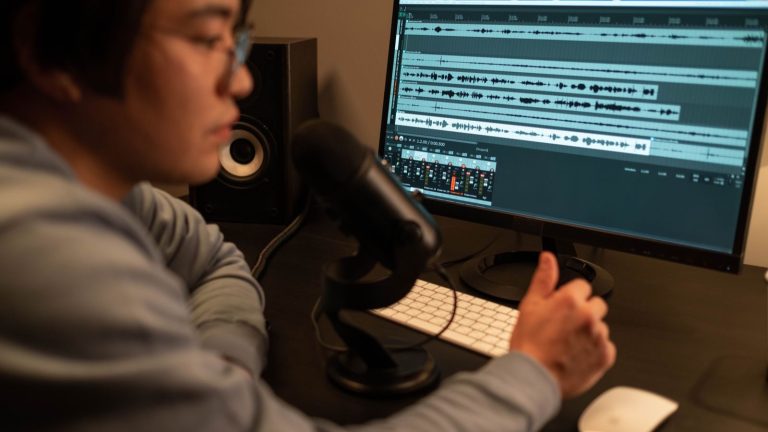
Photo: Pexels (Pexels License), via Pexels
Bad dialogue ruins more edits than bad footage, and the two AI tools most editors already own can fix a surprising amount of it: Enhance Speech in Premiere Pro and Voice Isolation in DaVinci Resolve. This guide walks through both, with the settings that matter and the situations where each one falls apart.
Cleaning Dialogue With Enhance Speech in Premiere Pro
Adobe’s official announcement lays out the whole workflow, and it is short:
- Open the Essential Sound panel and select a clip with speech in your sequence.
- Click Dialogue to tag the clip as dialogue.
- Click the Enhance button and wait for processing to finish.
- Use the Mix Amount slider to set how much of the enhanced voice replaces the raw audio.
Adobe says the Mix Amount slider “allows you to mix your raw audio with the enhanced audio, allowing natural background noise to come through.” That slider is the whole craft. Pushed to the top, the voice sounds isolated and sterile, like it was recorded in a different room than the picture suggests.
Adobe also lists what it is good and bad at. It works well on audio from low-quality microphones such as phones, online meetings and on-camera mics. It does not work well on extremely poor audio like old VHS recordings, overlapping speakers, whispers, loud background music or singing. It is also not meant for music, effects or ambience, and Adobe says the model is not trained on your usage.
The Light-Touch Rule
Film Editing Pro puts the right attitude in one line: “use this tool with a light touch. You want to find the balance between what is sounding better and clearer and also not losing the natural cadence.” Their workaround for the robotic edge is a layered one: duplicate the audio track, switch the enhancement off on the lower copy, and pull that copy down by 10 to 15 dB so a little of the real room leaks back in. They are frank about the tradeoff, calling it “choosing the lesser of the two evils: robotic-sounding voices or lots of noise.”
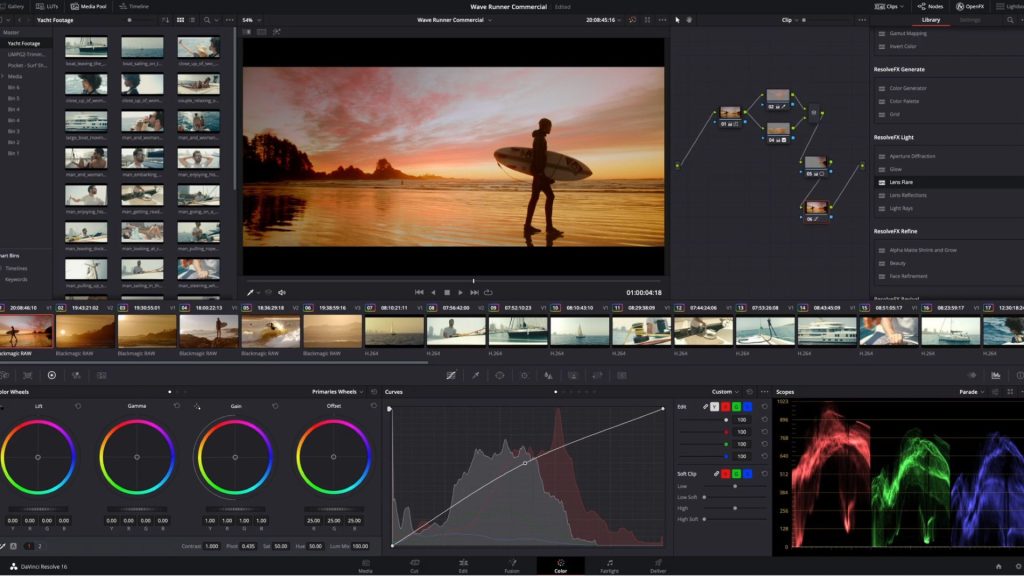
Cleaning Dialogue With Voice Isolation in DaVinci Resolve
Resolve gives you the same kind of tool in two places. According to DaVinci Resolve Club, you can enable it at clip level by selecting an audio clip, opening the Inspector, going to Audio and turning the module on, or at track level through Track FX in the Fairlight mixer.
Its Amount control blends the original with the isolated voice. DaVinci Resolve Club reports that Blackmagic recommends 70 to 80 as a range that sounds natural while still isolating strongly, and suggests adjusting only until the background stops getting in the way of speech.
One catch: both DaVinci Resolve Club and DVResolve.com say Voice Isolation is a Studio feature, not part of the free version. Other pages online say otherwise, so check your own install before you plan a job around it.
Voice Isolation, Dialogue Leveler and Dialogue Separator
These three get confused constantly, and they do different jobs.
- Voice Isolation separates a recorded voice from competing sound.
- Dialogue Leveler rides loud dialogue down and lifts quiet dialogue. DVResolve.com says it is available in both the free and Studio versions.
- Dialogue Separator is a Fairlight effect. Larry Jordan describes it as letting you “rebalance dialogue against background sound and the reverberant sound of the room,” with separate controls for voice, background and ambience.
DaVinci Resolve Club recommends this order when you combine them: match big clip-gain differences first, apply Voice Isolation conservatively, then add Dialogue Leveler. Larry Jordan also warns that the track-based versions in Fairlight are where the real power sits, but that they are “almost impossible to find.”
Which One to Reach For
Run the tools on a clip that actually has the problem, not on a clean interview. A few rules that hold up across both apps:
- Traffic, air conditioning or a hissy phone mic: Enhance Speech or Voice Isolation, at a partial amount.
- A room that sounds like a bathroom: the Dialogue Separator’s ambience control in Resolve is built for that.
- A wide dynamic range, with one person shouting and another mumbling: Dialogue Leveler, before anything else.
- Two people talking over each other, or music underneath: do not expect a fix. Adobe lists both as limits.
Finish the Edit Properly
Always compare against the original by toggling the effect on and off while the picture plays, not while you stare at a waveform. Then lay in room tone under the cleaned dialogue, because an AI pass that removes everything leaves a dead hole the audience hears as an edit.
The best dialogue fix is the one nobody notices, and with these tools that means stopping before the voice sounds perfect.
Sources: Adobe Community, Now Released: Enhance Speech in Premiere Pro; Film Editing Pro, AI Dialogue Enhancement in Premiere Pro; DaVinci Resolve Club, Voice Isolation vs Dialogue Leveler; Gedaly Guberek, DVResolve.com; Larry Jordan, AI-Powered Features in DaVinci Resolve 20; Larry Jordan, Three Ways to Reduce Background Noise in DaVinci Resolve 20.